
SLX Internal Salesforce Asana Process

Internal sf task Process

 Looking for our Internal Design Asana Process?

About

This internal Salesforce process outlines how client tasks are assigned and how the Account Coordinator team collaborates with our Salesforce team towards completing Salesforce tasks. At SLX, we have local SF Developers, and we also work with a team in India. Our main developer locally is Soham. The main contact and developer and on our India team is Bhagwan, who we connect with via the “SLX Salesforce Team” chat space in Google Chats. Also on the India team is Dishu (another developer), and Kopal (QA). Please review the following process below. If you need additional help or clarification, please reach out to your team leads. 

COMING SOON: Video tutorials!

Versions

Last Updated: June 26, 2023

As we continue to improve and optimize this process to be as efficient and streamlined as possible, there will be on-going process updates. Process updates will always be announced in huddles and updated on this document. We welcome feedback and suggestions on the current version of the process. Thank y’all for your patience! 

Internal SF Task Process

1. Task Requests

Task creation by the client:
  1. Tasks are usually submitted by clients in the ‘Build Your Task’ column on the client-facing board.
  2. When clients are ready for their tasks to be reviewed, they should move their task card to the ‘Waiting in Queue’ column. When that action happens, the AC will automatically be assigned to the task, and will be notified in their Asana inbox.
  3. The AC will review the task and get clarity from the client, usually during weekly check-in calls or via Asana task comments. The AC will update the task comments with further detail.
  4. Note: Not all clients are good at moving their tasks into the ‘Waiting in Queue’ column, so just keep an eye out on what is in the ‘Build Your Task’ column.
 
Task creation by AC:
On occasion, clients will email ACs about a task request or discuss new tasks on your calls. In this case, ACs will help clients create tasks on their boards.
  1. To create a task through the Asana plugin on Gmail: For instructions, go to our AC Training Manual, and search for “Asana for Gmail”
  2. To create a task during or after a call: Simply create a new task on the client-facing board and enter in the task description
 
Prioritizing Tasks:
  1. The AC should communicate directly with the client to determine which tasks are of high priority and need to be completed first
  2. Clients have ‘unlimited’ task requests, but we will only work on 3, on-going tasks at a time. As such, it is up to the AC to work with the client on task prioritization and which 3 tasks should be worked on first.
  3. If clients have an urgent request, you can comment on the card with the following verbiage: “Thank you for your request! You currently have multiple tasks in progress. We’d be happy to prioritize this task, but do let us know which of the current tasks we can place on hold to prioritize this. We will resume that task once this task is complete.”
 
Best Practices for ACs:
  1. Don’t be afraid to ask clients to show you what they are referring to on their Salesforce instance. You can ask to record what they are showing you as well.
  2. Ask clients as many questions as needed for you to fully understand their request and assign the task to our SF Developers

2. Internal Task Assignment

Client Facing Task:

  1. Column: Once the task is ready to be in progress, the AC will move the task into the “In Sandbox” or “In Production” column, so the client is aware of which stage the task is in.
  2. SD: Enter the task start date 
  3. Status: Building and Testing Your Asset
  4. Tag the client and let them know that our team will start building their asset in Sandbox/Production. Pin this comment to the top.


The AC then makes a duplicate of the client-facing task, making the necessary edits to the duplicated task:

  1. Task Name: Remove “Duplicate of” from the task name.
  2. Project: Change the Project to the client’s internal facing project board (all internal boards end with “- SF” instead of “- Salesforce”). Make sure the client-facing board project is no longer visible by click on the ‘x’ next to the client-facing project board.
  3. Column: The task should first be placed in the“Build Your Task” column.
  4. Description: Modify the task description on the internal task to provide as much detail as possible about the requested task to the SF Developer. A Loom video recording is suggested if the task is complex or needs a longer explanation. Always specify whether work can be done in Sandbox or Production.
 

Double check that your internal task is no longer visible on the client-facing board.


Once the task internally has enough info, ACs should do the following to assign the task to their AC Team Lead. The AC Team Lead will review the task request first to ensure it has enough information for a Salesforce Admin to work on. To get the task to the AC Team Lead for review, ACs should:

  1. Column: The AC will move the task to the ‘To Do’ stage
  2. Assignee: Asana will change the assignee to the AC’s Team Lead. The AC Team Lead will review the request.
  3. Due Date: The AC will set to the same day or the next working day depending on the following schedule:
    1. If the SF task is assigned to the AC Team Lead before 12:00 pm CT, then the due date should be placed as the same day.
    2. If the SF task is assigned to the AC Team Lead after 12:00 pm CT, then the due date should be set for the next day.
 
The AC Team Lead will review the request. Once they have approved the description and determined it is ready for SF Dev assignment, the AC Team Lead will:
  1. Column: The AC Team Lead approves the task description and will move it to ‘AC TL Approved’ column.
  2. Assignee: Asana will auto change the assignee to the AC. 
 
Then, once assigned back to the AC, the AC will move the task to the next steps:
  1. Assignee: Assign to Eliav. Eliav will reassign to a relevant SF Dev based on bandwidth. 
  2. Column: Move to ‘In Sandbox’ or ‘In Production’. 
  3. Status: Select the appropriate status for your task once it is in the “In Sandbox” or “Production” columns.
  4. Priority: Select the appropriate priority level for your task. This helps our SF team know which tasks to work on first. HIGH priority tasks are tasks that need to be addressed ASAP, typically same day. MEDIUM priority tasks are urgent but can wait a day or can be completed after the HIGH priority tasks are addressed. LOW priority tasks are non-urgent but still need to be addressed after HIGH and MEDIUM priority tasks are complete.
  5. Due Date: Set to the next working day.
 
Best Practices for ACs: 
  1. Check that the client is not a collaborator on the internal task.
  2. The more detail you can provide during task creation, the better as it reduces back and forth time between our SF team.
  3. Most tasks should be built/tested in Sandbox first, unless specified by the client. If unsure, check with your team lead.
  4. If you’re unsure whether a task request is even possible, have a discussion with your team lead and SF developer first. Don’t promise clients without knowing whether a task is possible.
  5. Ask SF developers for an estimated completion time if a task is going to take more than 1 day so that you can communicate this clearly to the client

3. Working on the Task (In Sandbox/In Production Stage)

  1. The Salesforce team member will begin working on the task request. If clarification is needed, the SF Developer will comment on the card with the questions listed and tag the AC.
  2. Because Salesforce can involve more complex requests, we suggest connecting via a quick call to communicate about tasks:
    1. To connect with our local and India-based team: ACs can message Soham directly via Google Chats to hop on a Google Hangouts call and vice versa. Or simply book a time on Google Calendar to meet. For the India team, you can chat or video call with them through the “SLX Salesforce Team” chat space in Google Chats. Soham is in this group as well. Dishu is our main contact over there and one of the main developers. Also on the team is Kopal (QA). 
    2. Deadline Extension for Salesforce Developers: If a deadline extension is needed, Salesforce Developers should tag the AC before the end of the work day to request an extension and provide a status update. The AC will extend the deadline to the next working day and place a ‘SF Developer’ extension request tag.
 
In Sandbox Stage
  • Most tasks, especially custom tasks, will start off in the ‘In Sandbox’ stage as we want to be able to fully test the request before pushing it live to production. Examples of tasks that always need to be built and tested in Sandbox first are automations, process builders, new page layouts, etc. 
 
In Production Stage
  • Some tasks, with approval from the client, will start off directly in the ‘In Production’ stage. These are rare and are often smaller requests that don’t affect many items in production. Examples of tasks that typically can be completed directly in production are pulling/building reports, changing a field name, updating a picklist, creating a record, updating a field, etc.
 
Best Practices for SF Developers:
  • Always assume work should be done in Sandbox first, unless specified by the AC. If unsure, ask the AC.
  • Never push anything into production without approval from the AC.
  • Always pull backups of records if making mass changes.
  • If ever unsure of anything, discuss with the AC first.
  • Think big picture: Don’t just complete the task without thinking about how the task affects other aspects of the client’s SF environment. How will this task affect anything currently in Production? Check with the AC if unsure.
  • Take initiative to offer suggestions if you have a better solution than what is being requested.
 
Best Practices for ACs:
  • Never push anything into Production without approval from the client. Always demo in Sandbox if possible first, then ask for confirmation to push into Production.
  • Do not push anything into production on Fridays, unless you can confirm that whatever was pushed into production is working as intended with no issues. 
  • Make sure Salesforce Devs are still around/available to fix or revert any pushes to production if necessary.
  • Always reminder SF developers to pull backups of records if making mass changes.
  • Think big picture: Don’t just complete the task without thinking about how the task affects other aspects of the client’s SF environment. How will this task affect anything currently in Production? How will this task affect anything currently in Production? Check with the SF team if unsure. You may also need to check with your client to see if they can see anything being affected (such as a process or automation) that you are unaware of.
  • Take initiative to offer clients suggestions if you have a better solution than what is being requested.

4. Communication with Clients

As the task is being worked on, ACs should keep in frequent communication with clients, providing updates as available:

  1. Updates can be provided during weekly check-ins, but should also be documented on the Asana card via comments
  2. Even if a task is not completed, the AC should provide a simple update to the client by tagging the client and using verbiage like “@client, quick update: Our team is still working on completing this task and we should have it completed by [estimated deadline]. I will keep you posted!”, or “@client, quick update: Our team is working on testing this in Sandbox. I should have another update for you by tomorrow morning.”
  3. If a task needs more time, the AC should communicate this to the client as well.

5. SF Developer Testing and Task Completion

  1. Testing and Demo: SF Developers should check and test all work before informing the AC, ensuring that the task has fully met the request. To ensure that testing is thorough, SF Developers should:
    1.  Review the task instructions again to ensure all requests have been made.
    2. Test and review all aspects of what was done.
    3. Film a Loom demo video to demonstrate functionality if the task is complex or involves multiple moving parts (such as for automations, process builders, custom requests, etc). 
    4. Gather all related links.
  2. Once a task is completed and has been QAed by the SF Developer:
    1. The SF Developer will do the following on the internal task card:
      1. Assignee: Change this to the AC
      2. Tag the AC in a comment and include the applicable deliverables:
        1. Relevant screenshots, direct links, detailed explanations of the completed task
        2. Demo Loom videos. 

6. AC Review

The AC will receive a notification in their Asana inbox when they are tagged on the completed task. 

  1. ACs will review the task in full, checking to see if the completed task has met all task requests. The AC may request additional information from the SF Developer for more clarity, such as a Loom demo video or direct links, if needed.
  2. If all looks good and the AC approves, the AC will do the following on the internal task card:
    1. Column: Keep the task in the same column (In Sandbox or In Production)
    2. Status: Change the status to “Approval Needed”.
    3. Error tag: If an AC notices that the SF Developer made a spelling error, missed instructions, upload errors, wrong information, or functional errors (aka automation/workflow doesn’t work), then apply the ‘SF Developer Error’ tag here. You can leave this blank if there are no errors. 
    4. Tag the SF developer, letting them know that you have reviewed the task and will be sending it to the client for approval.
 
 Best Practices for ACs:
  • Always check the final task before presenting it to the client. Test it yourself.
  • If the SF Developer forgets to provide direct links, screenshots, etc – tag the SF Developer to provide those.

7. Presenting the Completed Task

The AC will do the following on the client-facing board:

  1. Column:
    1. If the task is in Sandbox, leave the task in “In Sandbox”
    2. If the task is built in Production and ready for final review, move it to “For Your Final Review”.
  2. Status: Change to “Approval Needed”. 
  3. Tag the client, providing an update in the comment. Updates should include:
    1. A clear explanation of what was completed.
    2. Any related links or screenshots. 
    3. Possibly a Loom video explanation if the task is complex or requires a long description. Do not share the internal Loom video that our SF team provides you with the client. If providing the client with a Loom video, film your own version.
    4. Updates can be provided via your weekly check-in call, but also always needs to be documented as a comment on the card during/after the call.
  4. Pin the comment to the top. Unpin any old comments.
 
Best Practices for ACs:
  • Don’t just copy and paste what the SF Developer has provided to you in your update – make sure to edit your message to the client.

8. Task Edits

  1.  If any edits are requested by the client, the AC will do the following on the client-facing card:
    1. The AC will note all requested edits (if not already noted by the client) on the Asana card as a comment.
    2. Column:
      1. If the edits can be made to the task in the current Salesforce environment that is already in, leave the task in the current column. 
      2. If the task is in the Production environment, but needs to return to the Sandbox environment for edits and testing, then move the task back to “In Sandbox” column.
    3. Status: Change to “Revising Your Asset”.
  2. On the internal card, the AC will do the following:
    1. Tag the original SF Developer in a comment and include all requested changes. If necessary, share a Loom video explanation if the edits are complex.
    2. Assignee: Assign this back to the original SF Developer.
    3. Column: Match the column that the client-facing card is in.
    4. Status: Clear
    5. Due Date: Set as the next working day.
    6. Error tag: If the edit that the client reported is an error (aka something in the original request that we missed or did wrong), then apply the ‘SF Developer Error’ tag here. You can leave this blank if the edit requested is a new edit from the client, and not an error on our part.
 
Steps 3-8 will be repeated until the task is fully completed and approved by the client.

9. Task Approval and Final Completion

Once the final task is approved by the client, the AC will:

  1.  On the client-facing card:
    1. If the client has said provided written or verbal approval to close the task, the AC will make a final comment acknowledging this, tagging the client that they will be closing this task out. For example: “Thank you @client for confirming! I will be closing this task out now.” or “Per our discussion today, @client has confirmed closing this task out.”.
    2. Status: Clear the status
    3. ED: Enter the task end date
    4. “Mark Complete” the task. This will automatically move the task to the “Accomplished” column on the board.
  2. On the internal card:
    1. Tag the SF Developer, notifying them that the client has approved this task, so you will be closing it out.
    2. Status: Clear the status
    3. “Mark Complete” the task. This will automatically move the task to the “Accomplished” column on the board.
 
Best Practices for ACs:
  • Always make sure you get verbal (via a call) or written confirmation from the client that a task is ready to be closed out. If a client has not provided this, follow up with them.

SF Documentation Process

About the Process

The Salesforce Documentation plan is a way to centralize and share all nuanced SF knowledge about each client’s unique Salesforce environment and process across the org. It involves 3 parts:

  • An updated SF Asana process
  • Updating the “SF Records Sheet” for each client
  • Updating descriptions in Salesforce
 

The Documentation Plan help address the following:

  • Generally a Salesforce best practice to have a record of all things unique to a Salesforce instance.
  • Gives Team Leads access to knowledge when covering for ACs: With this shared resource, AC TLs have a central place to look for information when covering for ACs who are OOO. ACs can also refer their Team Lead’s to the sheet if they want them to be aware of specific items to note.
  • Saves ACs and SF Devs time from having to revisit closed Asana tasks and read tons of comments: Forgot what a flow does or how we built it? Need to know the specifics of a report that your client always references? This Record Sheet should help! If documented, team members can reference the sheet and get the info without having to spend extra time figuring out what we’ve done in the past or scheduling extra calls with SF Devs to get an explanation. 
  • Gives ACs quick access to info about flows and other complex components that they can share with their clients. Reduce the time needed to ask SF Devs for an explanation: Similar to the above, all complex components, including flows and APEX code should be documented on this sheet moving forward. This should help ACs have faster and direct access to info in case their clients ask for details. ACs won’t have to wait to hop on a call with a SF Dev if they can have the info clearly documented on the sheet.
 

Read on below to learn about the process in detail.

1. SF Documentation Process in Asana

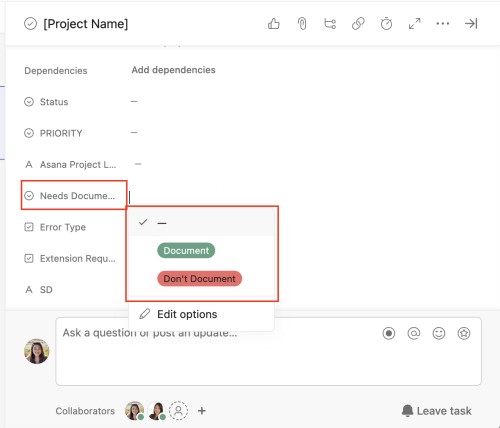
  1. Within Asana, there is a ‘Need Documentation?’ field that will indicate whether a SF task requires documentation or not.

    1. Both AC(s) and SF Dev Admin(s) can update the ‘Need Documentation?’ field to a value of ‘Document’ or ‘Don’t Document’ at any stage of a task where they realize documentation may be needed. 

    2. All SF tasks moving forward will require this field to be filled out with either of the two status options. If the field is left blank by the time the task closes, this will result in both an AC and SF Dev error.

    3. If you’re unsure whether something needs to be documented when the task is created, it’s ok to add the ‘Document’ tag at a later stage. 
Screen-Shot-2023-06-26-at-3.32.10-PM

      2. If ‘Document’ status is applied, then documentation is needed. The person who applied the status is responsible for recording it on the Record Sheet:

    1. If a SF Dev Admin places the ‘Document’ field value, they will take ownership of documenting the info onto the relevant client’s Record Sheet. A best practice is to document as you go and update as information changes.
    2. If an AC places the ‘Document’ field value, they will take ownership of documenting the info onto the relevant client’s Record Sheet. A best practice is to document as you go and update as information changes. If dealing with a more complex task, ACs can reach out to SF Dev Admin(s) to ask for clarification.
    3. Overall, ACs have the responsibility of ensuring that documentation occurs (if the ‘Document’ field value is applied) before the task closes.
      1. An existing Asana rule called “Documentation Reminder” (see screenshot below) will provide ACs with a reminder to confirm whether documentation has been added to the Record Sheet whenever a task marked with ‘Document’ moves to the ‘Under Final Review’ column. The reminder will be provided in the form of a comment, tagging the AC and providing a direct link to the relevant Client Profile for easy access.
    4. ACs will close the task once they verify that documentation is complete (if needed).  
Screen Shot 2023-06-26 at 3.39.42 PM

       3. If ‘Don’t Document’ status is applied, then documentation is not needed. The AC can close the task when the task is complete.

2. Documentation Guidelines

Not everything or every task we complete for clients requires documentation. Please refer to our documentation guidelines for details.

If in doubt, document it anyway. If you’re still in doubt, reach out to your Team Lead with questions.

3. Documentation In the SF Record Sheet

  1. ACs and SF Dev Admin(s) will open up the relevant client profile they are documenting for and go to the ‘SF Record Sheet’ tab. All current client’s Client Profiles can be found here. A few general things to know before you start documenting:

    1. The SF Record Sheet is the last tab in the Client Profile (see pink box outline in the screenshot below)

    2. SF Documentation Guidelines are linked at the top of all SF Record Sheets for easy access (see blue box outline in the screenshot below)
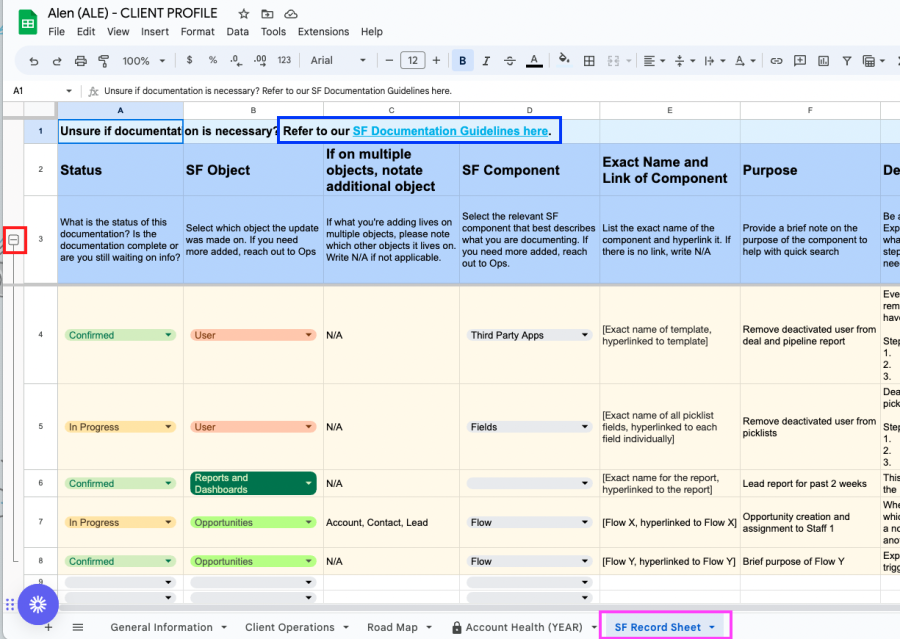
    3. The rows highlighted in yellow are just examples. Click on the minus sign on the left (see red box outline in the screenshot below) to hide those rows.
Screen Shot 2023-06-26 at 1.51.26 PM
 
  1. First, do a find and search to see if the info you want to document exists already on the sheet. 

    1. If yes, confirm whether the info is up-to-date. Make updates accordingly, if needed.
    2. If no, follow the columns to fill in the relevant details for documentation. All columns have a brief description explaining what info should be inserted. If a new object or component is required, reach out to Ops.

  2. Since we are documenting as we go and not waiting until the task is complete, utilize the tags in the ‘Status’ column to indicate what stage of completion the documentation is in:

    1. ‘In Progress’ status: Use this when starting to document items that are not 100% confirmed and finalized yet, so as not to forget the details while it’s fresh in your mind. This status indicates that we are either waiting for client approval or more info.

    2. ‘Confirmed’ status: Use this when all the info is accurate and final. We are no longer waiting to confirm any details. All ‘In Progress’ tags can be updated to ‘Confirmed’ once details are finalized.

    3. ‘Inactive’ status: Use this when the documented item is no longer valid/active/being used. We still want to keep a record.

  3. The AC or the SF Dev Admin(s) will comment back in Asana once documentation is complete and tag one another.

  4. Regardless of who documents in the Record Sheet, it is the AC’s responsibility to check and confirm that documentation is complete (if needed) before closing the task.

4. Documentation in Salesforce

This is for Salesforce Developers, though on occasion, if ACs are doing their own SF tasks, they should be aware of how to document within Salesforce environments as well:

  • Refer to our Documentation Guidelines for details on what to document.
  • Documentation within Salesforce entails writing clear descriptions within Salesforce objects and components.
  • To help us distinguish between SLX descriptions/notes, please start the description/note with “SLX:”