
SLX Detailed Internal Design Asana Process for Animations

SUBTASKS

Looking for our Internal Detailed Design Process?

About

This internal animation design process outlines how animation tasks are assigned and completed. Please review the following process below. If you need additional help or clarification, please reach out to your team lead.

Versions

Last Updated: August 3, 2022

As we continue to improve and optimize this process to be as efficient and streamlined as possible, there will be on-going process updates. Process updates will always be announced in huddles and updated on this document. We welcome feedback and suggestions on the current version of the process. Thank y’all for your patience! 

The Process: Overview

Animation Task Requests

Animations can be applied to List Email, Email Template, Pardot Landing Pages, and WordPress Landing Pages. Not all tasks will have animations. Clients will usually specify if they want an animation. Designers can also suggest adding animations to designs if it helps enhance the asset! 

Animations are created in a separate subtask called “CREATE ANIMATION”. The only time creating an animation is not its own separate subtask, is if we were tasked to create an animation (like a GIF) for a social media post. In that case, ACs would just create a parent task to create the animation, and the creation of the animation by designers happens in the DESIGN subtask. 

Stages and Subtasks

DESIGN Stage and Subtask

This is where the flat design proofs for the animation is created.
  1. ACs:
    1. Build and assign this internal task as usual (use the correct task template). When you get to the “Specific images to be used or desired type of imagery?” question, pause and move to the next step.

    2. Open up the CREATE ANIMATION subtask and build out the description for the animation request here. Do not assign the CREATE ANIMATION task yet, just fill in the description. More details are provided in the CREATE ANIMATION subtask instructions below.

    3. Once you have built out the description in the CREATE ANIMATION task, return to the DESIGN subtask. 

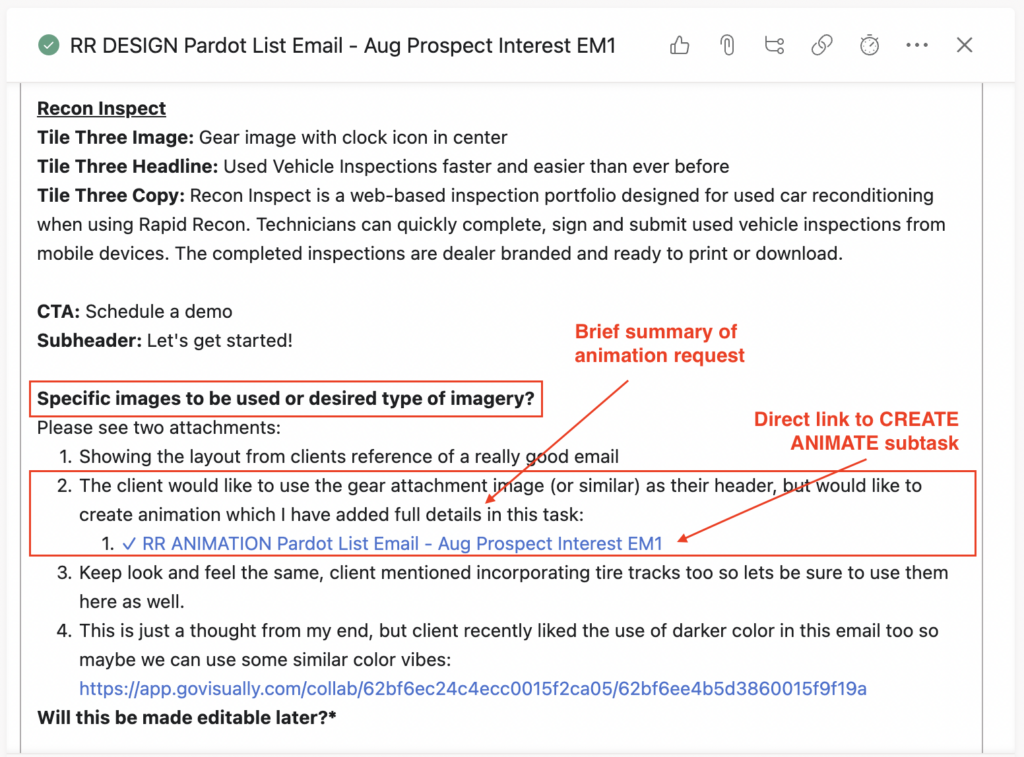
    4. Under the “Specific images to be used or desired type of imagery?” question, add a brief summary of the animation to give the Designers a heads-up, and provide the direct link to the CREATE ANIMATION task for the Designer to reference. 

      1. Here’s a great example of how this is done: ✓ RR DESIGN Pardot List Email – Aug Prospect Interest EM1. Refer to the screenshot below as well.
  1. Designers: The next day, build out the asset per usual and then, when done with the design, submit the below to your creative lead for review:
    1. The Figjam link of the flat proof, with the flat proof of the animation included. If the animation is already created at this stage, please include the animation in the Figjam link to the right side of the design proof.
    2. EOA results link.
  2. Creative Team Lead: 
    1. Review the design proof and EOA results link as usual.
    2. Once approved, tag QA for review.
  3. QA:  Will review the proof per usual, taking into consideration that the animation will just be a still image, unless the animation is already created. If it is created, it will be visible in the Figjam proof to the right of the design proof. 
  4. Designers: Once QA approves, send a fresh Figjam link that includes the animation flat proof for the client and tag the AC. If the animation is already available, make sure to inform the AC that is it visible on the Figjam link.
  5. ACs: Follow regular process to share the design proof with your client and get their approval.

        If your design proof has a flat proof of the animation: 

    1. In sharing the design proof with the client, please inform clients that this is a flat proof of the animation only.
    2. Clients will need to approve the flat proof of the design with the flat proof of the animation before you can assign the CREATE ANIMATION subtask.
    3. Once the client approves the flat proof, inform your client that our team will start building the animation tomorrow. It is not always guaranteed that the animation is complete within a day, so do not promise them that the animation will be completed the next day (refer to the Methods page for animation timelines).
    4. Follow the process to inform the Designer that the client has approved and close the task. 

If your design proof has a live animation to view:
    1. ACs should inform their clients that they will be able to see the animation in the Figjam proof by double-clicking on the GIF to the right of the design flat proof.
    2. Follow the process to inform the Designer that the client has approved and close the task. 
 

If a client did not specify wanting animations but Designers want to add in an animation, follow this process:

  1. ACs: When setting up the parent task, do not delete the CREATE ANIMATE subtask yet, in case Designers want to add in an animation.
  2. Designers: You would build out the animation the same day you are building out the design.
  3. Designers: Once the animation is built, take the animation file, go to the  CREATE ANIMATE subtask, and attach the file there. Grab the link of this subtask, and make sure to provide the link to this subtask when you tag your Creative Lead to review the Design proof. So when submitting a proof to your Creative Lead in the DESIGN subtask, you will submit:
    1. Figjam link, with the flat proof of the animation included. If the live animation is available, include it in the Figjam proof.
    2. EOA results link.
    3. Link to the CREATE ANIMATION task where you have attached the built out animation file.
  4. Creative Leads: Will review the design and built animation, and if approved, will tag QA for review. They will also let QA know at this point that an animation is included in the design.
  5. QA: Follows regular process to review the design proof. If the animation has no words, no need to review the animation. Once approved, tag the Creative Lead and Designer with approval.
  6. Designer: Follows regular process to share a fresh Figjam link with the AC for the client. 
  7. Creative Lead: When the design is approved, close the CREATE ANIMATE subtask.

CREATE ANIMATION Subtask

 This task’s description is built the same day as the DESIGN subtask, but this task is only assigned after the DESIGN subtask is approved and marked complete. 
 
  1. ACs: Do the following on the same day the design is approved:
    1. Assignee: Design Lead
    2. Due date: Next day (or a range, depending on the complexity of animation and if it requires more days – refer to our Methods page, and if still unsure, ask your Creative Team lead)
    3. Description: Fill in the prompts listed on the template in this field. Provide a general idea of the requested animation if there is a specific request by the client. Otherwise, include a note for the designer to “Create an animation per your creative freedom”.
    4. Figjam link: Include the client-approved flat proof of the design with the animation.
  2. Designers: Next day, work on building out the animation. Once this is built, provide the creative lead with the below for review:
    1. The approved Figjam flat proof design. Include the animation on the Figjam board next to the design proof for emails, LPs, and social media.
  3. Creative leads:
    1. Review the animation. 
    2. Once approved, tag the Designer and cc the AC in a comment. Make sure to include in the comment that you are approving the animation and inform the AC that the animation is complete and approved. No need for QA approval or client approval at this stage.
  4. ACs:
    1. Upon receiving the approval comment from the Creative Lead, send the updated approved Figjam link.
    2. Close the task when this is done.
    3. No need for QA approval or client approval at this stage.
 
Important note: For social media animations where the animation is the post, and not part of another asset, the DESIGN and CREATE ANIMATION stage are combined. Which means that, ACs will need to provide the animation request details in the DESIGN subtask and can delete the CREATE ANIMATION subtask. For Designers, instead of providing a flat proof of the animation, you will just create the full animation in the DESIGN stage. Designers will submit the animation to the Creative Lead and QA to review before tagging the AC. The AC will then share the animation with the client for approval in the DESIGN stage. 

EXPORT FILES FOR DEV Subtask

 This task is assigned the same day as the design is approved. 
  1. ACs: Follow the usual process to assign this task.
  2. Designers: Follow the same process and remember to include the animation file here for Developers. Close this task once done.

BUILD & TEST Subtask

This task is assigned the same day as “Export Files for Dev”. This is where Developers build out the asset and include the animation.
  1. ACs: Follow the usual process to build and assign this task.
  2. Developers: Next day, build the asset and include the animation file. Follow the usual process to close this task.

DESIGNER REVIEW Subtask

 This task is assigned the same day as “Export Files for Dev” subtask.

Note: This subtask is ONLY for Pardot landing pages. There will be no DESIGNER REVIEW for all other asset types. Instead, after Build & Test, the asset will go straight to QA REVIEW. 

This is where the original designer will review the built out landing page.

  1. ACs: Follow the usual process to build and assign this task.
  2. Designers: Next day, review the test landing page link, ensure the animation and overall design of the landing page looks and behaves as intended. Follow the usual process to close this task.

QA REVIEW Subtask

This task is assigned the same day as the “Export Files for Dev”  subtask. Here is where QA sees the animation in context of the full email or landing page. They will also see the approved Figjam link of the animation with the intended behavior that the AC has attached to this task.
  1. ACs:
    1. Build and assign this task as usual. 
  2. QA:
    1. Next day, review the animation to ensure it matches the proof and desired behavior when they receive the test email/landing page. 
    2. Tag the Developer if approved. 
  3. Developer: Once approved by QA, close this task.
  4. If any edits are needed to the animation:
    1. QA: Tag the original designer and developer (to keep them in the loop).
    2. Original designer: Make the changes to the animation. Provide the updated file and tag the Developer.
    3. Developer: Update the asset with the edited animation. Tag QA for review again.
    4. QA: Review again. Tag Developer if approved.
    5. Developer: Once approved by QA, close the task and move forward with CLIENT TEST.

CLIENT TEST Subtask

 This task is assigned the same day as “Export Files for Dev”  subtask. Here is where the client and the AC sees the animation in context of the full email or landing page.

  1. ACs: Build and assign this task as usual.
  2. Developer: Next day, follow the regular process to send a test email or link to the AC to share with the client.
  3. ACs: Follow the regular process to get the client’s review/approval.
  4. If any client edits are needed to the animation, it would stay in the CLIENT TEST subtask:
    1. AC: Temporarily change the assignee to the original designer, tag the original designer in the comments, and provide the requested client edits. Make the due date tomorrow. Follow regular process for revisions.
    2. Original designer: Next day, make the edits, then change the assignee to the Developer, tag the Developer and include the updated animation file for the Developer.
    3. Developer: Update the asset with the new animation, resend a test email or LP link to QA first.
    4. QA: Review and approve the client requested edits. Tag Developer when approved.
    5. Developer: Once approved by QA, tag the AC and provide a fresh link or a new test email for the client.
    6. ACs: Follow regular process to send the updates to the clients and get client final approval.
  5. The rest of the process remains the same for closing out the CLIENT TEST subtask and any remaining subtasks for the asset, as well as the parent task.