

Looking for our Internal Design Asana Process?
This internal Salesforce process outlines how client tasks are assigned and how the Account Coordinator team collaborates with our Salesforce team towards completing Salesforce tasks. At SLX, we have local SF Developers, and we also work with a team in India. Our main developer locally is Soham. The main contact and developer and on our India team is Bhagwan, who we connect with via the “SLX Salesforce Team” chat space in Google Chats. Also on the India team is Dishu (another developer), and Kopal (QA). Please review the following process below. If you need additional help or clarification, please reach out to your team leads.
COMING SOON: Video tutorials!
Last Updated: June 26, 2023
As we continue to improve and optimize this process to be as efficient and streamlined as possible, there will be on-going process updates. Process updates will always be announced in huddles and updated on this document. We welcome feedback and suggestions on the current version of the process. Thank y’all for your patience!
Client Facing Task:
The AC then makes a duplicate of the client-facing task, making the necessary edits to the duplicated task:
Double check that your internal task is no longer visible on the client-facing board.
Once the task internally has enough info, ACs should do the following to assign the task to their AC Team Lead. The AC Team Lead will review the task request first to ensure it has enough information for a Salesforce Admin to work on. To get the task to the AC Team Lead for review, ACs should:
As the task is being worked on, ACs should keep in frequent communication with clients, providing updates as available:
The AC will receive a notification in their Asana inbox when they are tagged on the completed task.
The AC will do the following on the client-facing board:
Once the final task is approved by the client, the AC will:
The Salesforce Documentation plan is a way to centralize and share all nuanced SF knowledge about each client’s unique Salesforce environment and process across the org. It involves 3 parts:
The Documentation Plan help address the following:
Read on below to learn about the process in detail.
Within Asana, there is a ‘Need Documentation?’ field that will indicate whether a SF task requires documentation or not.
Both AC(s) and SF Dev Admin(s) can update the ‘Need Documentation?’ field to a value of ‘Document’ or ‘Don’t Document’ at any stage of a task where they realize documentation may be needed.
All SF tasks moving forward will require this field to be filled out with either of the two status options. If the field is left blank by the time the task closes, this will result in both an AC and SF Dev error.
If you’re unsure whether something needs to be documented when the task is created, it’s ok to add the ‘Document’ tag at a later stage.
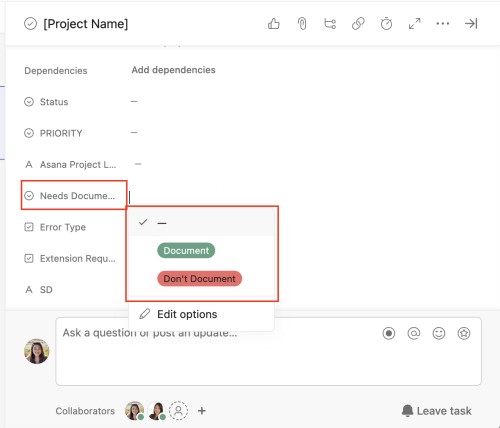
2. If ‘Document’ status is applied, then documentation is needed. The person who applied the status is responsible for recording it on the Record Sheet:

3. If ‘Don’t Document’ status is applied, then documentation is not needed. The AC can close the task when the task is complete.
Not everything or every task we complete for clients requires documentation. Please refer to our documentation guidelines for details.
If in doubt, document it anyway. If you’re still in doubt, reach out to your Team Lead with questions.
ACs and SF Dev Admin(s) will open up the relevant client profile they are documenting for and go to the ‘SF Record Sheet’ tab. All current client’s Client Profiles can be found here. A few general things to know before you start documenting:
The SF Record Sheet is the last tab in the Client Profile (see pink box outline in the screenshot below)
SF Documentation Guidelines are linked at the top of all SF Record Sheets for easy access (see blue box outline in the screenshot below)
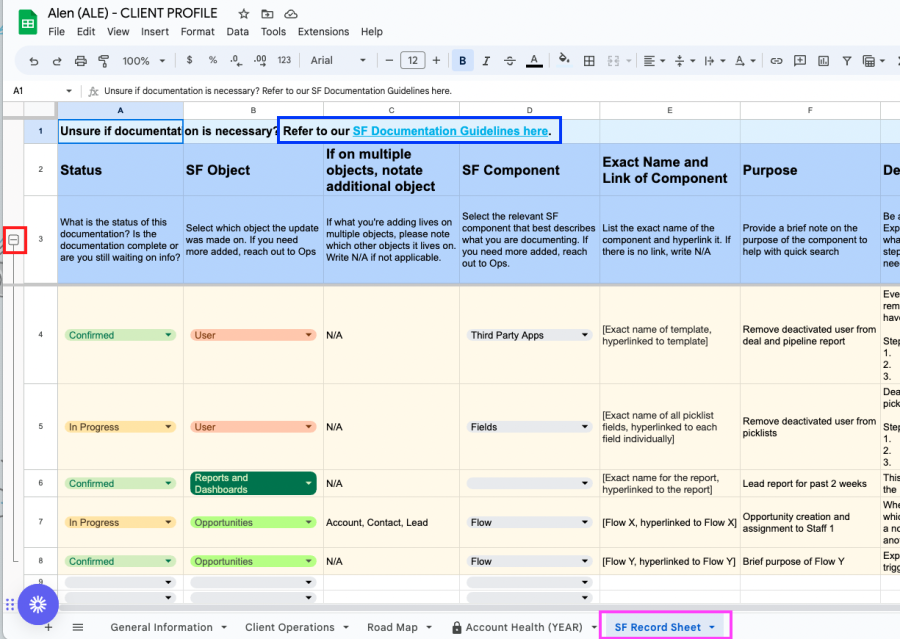
First, do a find and search to see if the info you want to document exists already on the sheet.
If no, follow the columns to fill in the relevant details for documentation. All columns have a brief description explaining what info should be inserted. If a new object or component is required, reach out to Ops.
Since we are documenting as we go and not waiting until the task is complete, utilize the tags in the ‘Status’ column to indicate what stage of completion the documentation is in:
‘In Progress’ status: Use this when starting to document items that are not 100% confirmed and finalized yet, so as not to forget the details while it’s fresh in your mind. This status indicates that we are either waiting for client approval or more info.
‘Confirmed’ status: Use this when all the info is accurate and final. We are no longer waiting to confirm any details. All ‘In Progress’ tags can be updated to ‘Confirmed’ once details are finalized.
‘Inactive’ status: Use this when the documented item is no longer valid/active/being used. We still want to keep a record.
The AC or the SF Dev Admin(s) will comment back in Asana once documentation is complete and tag one another.
Regardless of who documents in the Record Sheet, it is the AC’s responsibility to check and confirm that documentation is complete (if needed) before closing the task.
This is for Salesforce Developers, though on occasion, if ACs are doing their own SF tasks, they should be aware of how to document within Salesforce environments as well: