

This process guide is intended to provide all SLX team members with information, instructions, and helpful resources regarding Lattice – our people and performance management platform.
Lattice is an engagement and performance management platform. It helps our team organize, track, and gain visibility into our individual and collective progress, goals, and growth.
Visit the Lattice Help Center or read their Getting Started Guide for Employees to learn more about the platform in general.
Lattice benefits our team in several ways. The platform helps:
All team members will receive an email from Lattice with the subject line “Your Lattice invite has arrived!” (see screenshot below).

To activate your account:
If you did not receive this email or have trouble setting up your Lattice account, please contact hr@saleslabx.com.
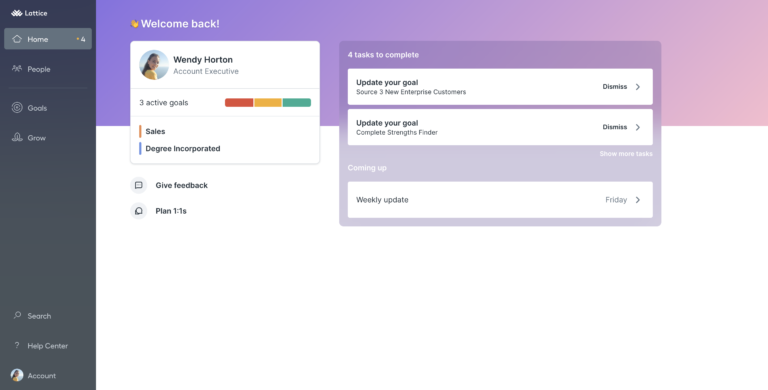
When you first sign into Lattice, you’ll be greeted by your Home Page (see screenshot below). The Home Page provides a quick snapshot of updates, action items, or upcoming meetings.
From this page, team members can:
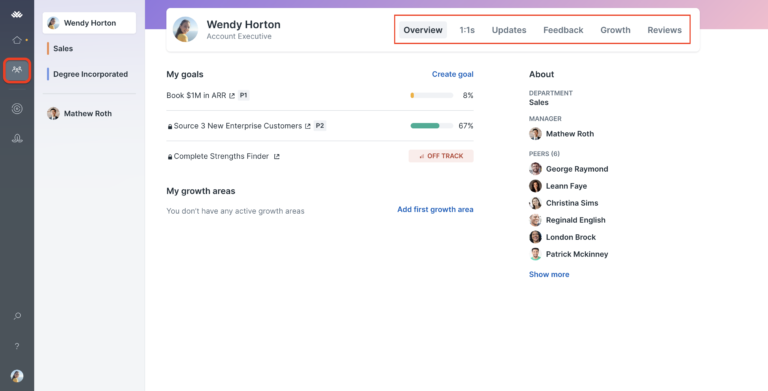
The People page gives team members visibility into Updates, 1:1s, Goals, and Reviews in the context of their work relationships (see screenshot below) For example, team members can find organization goals, their department, org chart, and profile within the personalized page.
The toolbar on the top right (see below) provides quick and easy access to the Lattice tools.
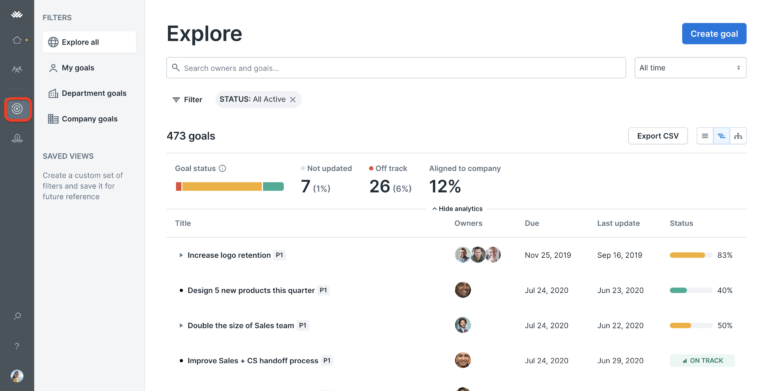
This is where you can view, edit, and update your personal goals, as well as see any available public goals and their progress. It offers several visualizations that depict the structure between individual goals and key results and the relationship between cascading goals
From this page, team members can:
You will also see the Grow page (lotus flower icon), which will hold your career growth paths (tracks). This is currently in the works, so you don’t have to worry about using it for Q1 2022. We will be sharing more details when this tool becomes available.
The left-hand discovery navigation panel provides you with additional resources you may need to be successful in Lattice, including:

What is the 360 Performance Review Cycle?
The 360 Performance Review is a process that evaluates all angles of each team member’s performance. It provides us with actionable feedback and gives all team members a better understanding of their contributions to their team and SLX. It helps us identify future areas of growth and development and encourages us to celebrate current strengths and wins. The 360 Review consists of four separate review types, which are completed through forms in Lattice, with performance-related questions:
How to Prepare and Participate in the 360 Review Cycle
On the first day of the Review Cycle, you will receive a reminder email from Lattice to begin your reviews. Follow the instructions in the email to get started! You can also login to Lattice directly – on your home page, you will be able to see your to-dos and reminders related to the review cycle.
Note: You will notice that all forms are available to you at the same time. While you are welcome to complete all forms within the same week, we suggest following the recommended review form submission timeframe below. The timeframe was built intentionally to give you enough time to complete each form, and be thoughtful about your observations and feedback.
Review the timeline and to-dos below:
360 Performance Review Cycle Annual Schedule:
360 Performance Review Cycle Annual Schedule:
These are dedicated monthly sessions between a Team Member and their Direct Lead to connect and communicate. They:
The 1:1 tool allows team members and team leads to collaborate on a shared agenda for the sessions. With this tool, team members can:
At SLX, team leads have already pre-scheduled these monthly sessions in Lattice, so team members will not have to set up recurring 1:1s.
Ad-hoc (one-time) 1:1s can also be scheduled by team members as needed, outside the monthly sessions.
Let’s dive into the different features of the 1:1 tool below.

Edit the 1:1 Agenda and Add Talking Points
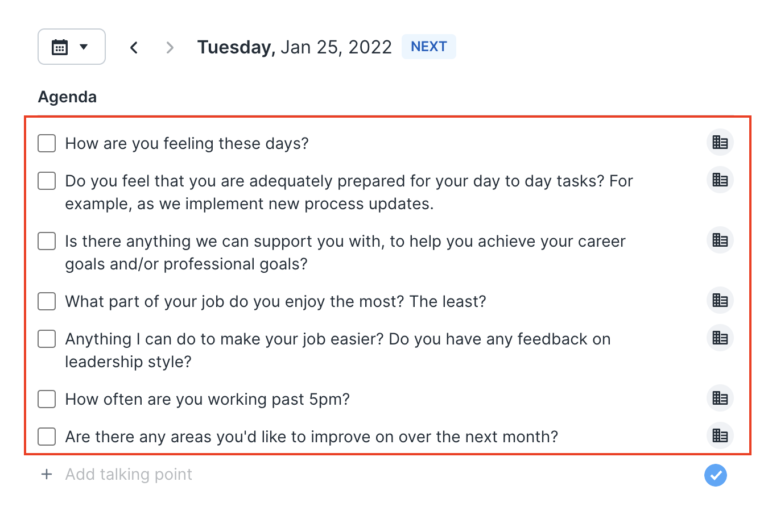
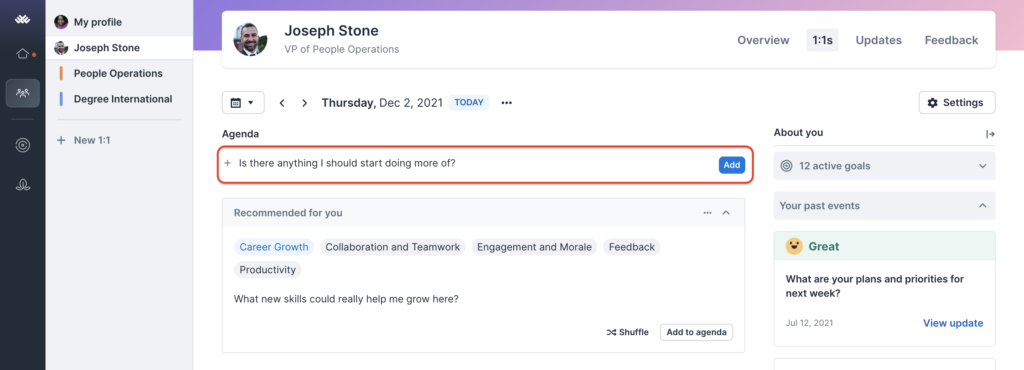
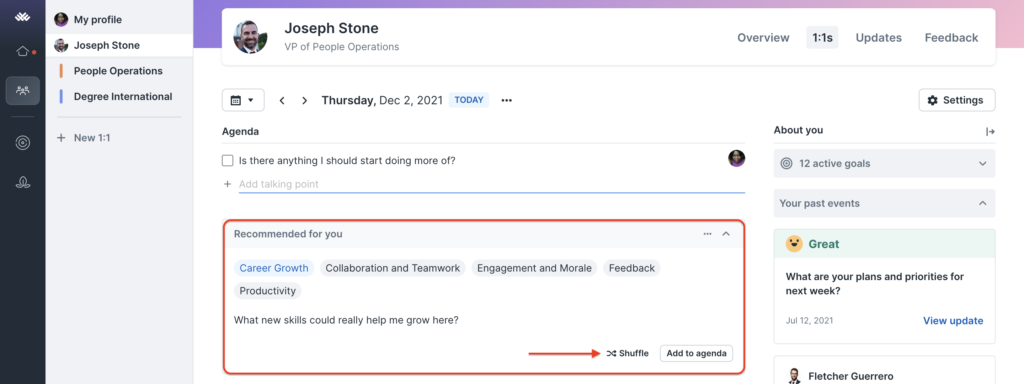
3. Your talking point will appear under the ‘Agenda’ with your image next to it. This helps your lead know that you added this item.
Learn more about navigating 1:1 agendas as a team member here.
Navigating the 1:1 Context Panel
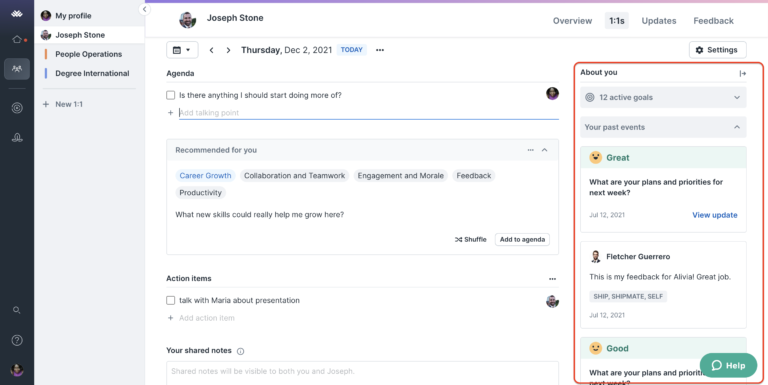
When you enter a 1:1, you will also see a context panel on the right-hand side of the screen. Here, you will be able to view your active growth areas (coming soon), current goals, and past events:
This activity is also viewable from your team lead’s end. Note: It will not be visible for 1:1s between non-team lead participants.
Two hours before your 1:1, you will receive an email reminder from Lattice. To best prepare for your monthly session, follow the steps below:
Best practices and what you can expect to happen during your 1:1:
After the session ends:

While your monthly 1:1s with your team leads have already been scheduled, you can always request a 1:1 meeting with a team lead or other team member at any time. These are considered ad-hoc 1:1s and are one-time session/do not have a repeated schedule.
In creating a 1:1 session in Lattice, you will also need to connect the event to your scheduled call in Google Calendar. This is an important step as any date/time changes made to scheduled sessions in Google Calendar will automatically sync and update the Lattice event. Note: Simply creating a 1:1 meeting in Lattice will not create a new event invite in Google Calendar.
Let’s walk through the steps on how to schedule an ad-hoc 1:1 and link it to your Google Calendar:
Connect an existing calendar event
To do this, you will need to first create the event in Google Calendar:
Schedule an Ad-Hoc (one-time) 1:1 Session in Lattice

4. Click on ‘Connect an existing calendar event’ and follow the additional steps below:

5. ‘Frequency’: Select ‘Once (not recurring)’
6. ‘Default agenda template’: You can either select an existing template or just create a new one.
7. ‘Talking points from previous meeting’ and ‘Action items’: Toggle these off unless you want to bring in any previous talking points/action items.
8. Click ‘Save’: The person you have scheduled a 1:1 with will receive a notification email with the link to the 1:1 page so that they can add talking points prior to the session, if applicable.
You can view past 1:1 agendas by selecting the calendar icon and choosing a date from the dropdown.
Goals inform us on what’s important to achieve and help us map out a plan to get to our desired results. They help us work towards our personal and career growth with clear measurable objectives, ideally achieving success. When effective goals are created, they help us:
Setting goals (large and small) also gives your leadership team clear visibility into your performance and career growth path, which helps them assess potential promotions, bonuses, and leadership opportunities.
Goals will be created during your 1:1s with your direct lead, as well as after each Performance Review Cycle. You’ll work together with your direct leads to define goals for yourself, and your direct lead will set specific goals they have in mind for you as well.
However, this doesn’t mean that you can’t set goals outside your 1:1s and Performance Review cycles! If you have a goal in mind for yourself or your team, talk to your team lead about it. We want to hear your aspirations!
The goal structure in Lattice allows us to track and measure our progress at all levels (individual, team, department, and organization. This means that goals created are made up of two significant parts: Objectives and Key Results.
Objectives: These help set the direction for the entire organization, department, team, or individual, and are usually aspirational. It is something that we want to achieve that is not measured.
Objective examples:
Key Results: These are quantitative (#, $, %, binary) and help measure what you need to accomplish in order to achieve your objective. They are metrics-driven and tangible.
Key result examples for an objective:
Objective: Build a world-class team
Together, this goal structure is what is known as an OKR (Objective Key Result).
To create a goal in Lattice at SLX, we will use the OKR structure, meaning that you will be creating Objectives and Key Results. We start with creating objectives, and later assign key results to achieve that objective.
Objectives
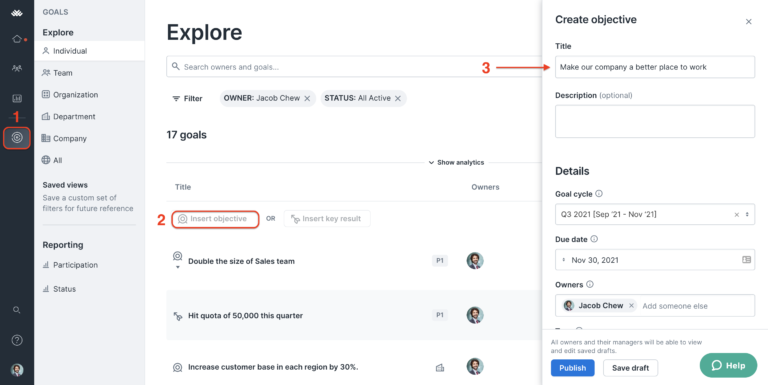
There are two ways we can create objectives in Lattice:

2. Or, navigate to the Goal explorer page and select “Insert objective”
Key Results
Once you have created an objective, you can move on to add Key Results. Remember, key results are quantitative (#, $, %, binary) goals that measure progress to attainment. Key results help measure what you need to accomplish the objective and are usually metrics-driven and tangible.
There are several ways you can add a Key Result:
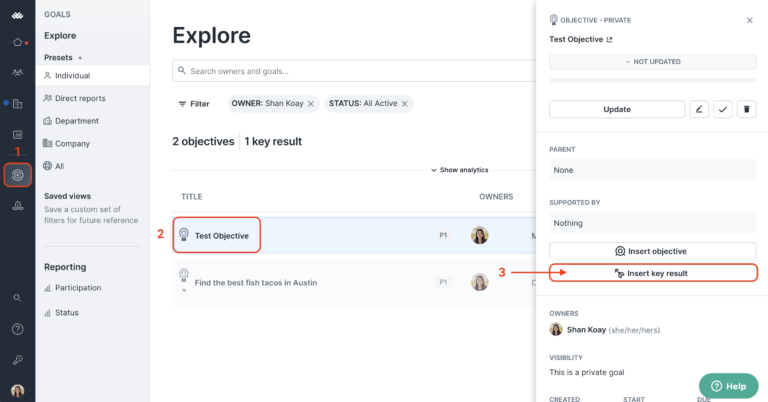
2. Or, from your Home page, click on ‘Create goal’. This will open a pop-up ‘Create goal’ page where you can select ‘Key Result’. If creating a Key Result this way, you can align it to a specific objective if you like.

Once you have the Key Results creation page open, follow these steps:
Enter a key result title: This will describe the measurable result.
For now, you won’t need to worry about creating goals in Lattice. Your Team Lead will create the goals within the platform for you. What you can focus on is working on those goals and updating them in Lattice.
Keeping your goal progress updated helps you stay on-track and keeps your team lead up-to-date on what you’ve already accomplished, what you’re currently working towards, or where you may need additional support.
Here’s how it works.
Update/Add Progress to an Objective:
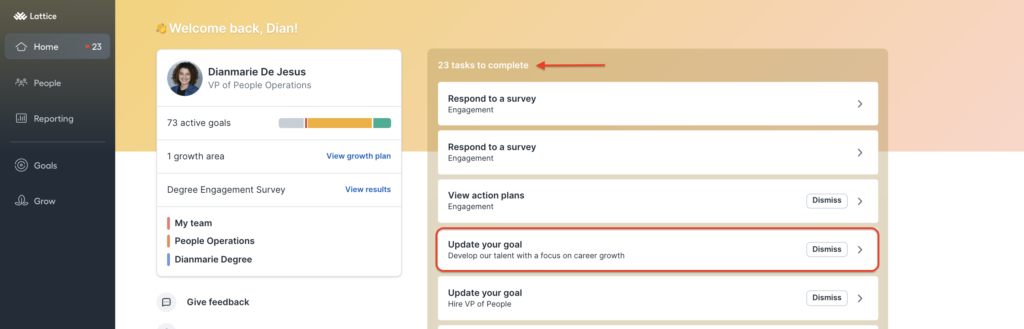

Within the Goal details page, under the Timeline section, add a progress update toward your goal by including a note in the “What’s new?” field and select a status of “Off Track”, “Progressing”, or “On Track” for the parent goal.
Off track: You aren’t feeling good about this goal and are far from completing it, or likely not to complete the whole goal. These should be rare.
Progressing: You have started working on the goal, but you’re not confident you’ll be able to complete it by the deadline. You may still be able to get this goal back on track. These are more common.
On track: You’re feeling great about this goal! It’s moving along, and you are on track to completing the goal by the deadline!
Learn more about Understanding Goal Progress and Statuses Definition here.

Update/Add Progress to a Key Result:
Making updates to a key result works exactly the same way. Be sure to update your key results as these determine whether the related objective can be completed.