Welcome to SalesLabX! We’re thrilled to have you be part of our growing team. This training manual will give you an overview of what it means to be an Operations Specialist at SLX, provide essentials steps for your onboarding process, as well as serve as a reference you can use throughout your time with us.
What SalesLabX Does
You might be wondering just what the heck our company does exactly. For the most part, we exist because Pardot and Salesforce are very prevalent tools in the B2B marketing space, but they are quite complicated for the average user. We happen to specialize in marketing using these platforms! Pardot and Salesforce are extremely powerful sales and marketing tools that allow companies to manage and nurture prospective and existing customers and to apply automated targeted marketing strategies to those contacts. There are almost limitless ways to use this software to increase a company’s audience reach and sales, but the tool isn’t always very user-friendly or stylish. Many companies get locked into a contract with Pardot/SF and their marketing teams lack the technical knowledge to take full advantage of the tool.
This is where SLX comes in. We provide Pardot and Salesforce strategy consulting and execution, as well as access to talented coders and designers that can make communications from Pardot and Salesforce look exponentially more professional and sleek than what a typical marketing employee using the interface could do on their own. There are other companies in the market that offer similar services, but typically they are very expensive, have long turnaround times, and involve lots of scope creep and friction. Our advantage comes from the fact that we offer unlimited access to these resources on a subscription based model to eliminate friction and scope creep. We bring companies’ marketing goals and ideas to fruition in what feels like a magically convenient way. The goal is to make them feel like our product (the SLX subscription) is custom-built for them by integrating seamlessly into their strategy and workflow so well that they can’t imagine doing it without us.
What You’ll Do
As an Operations Specialist, you will be support our People Operations and Internal Operations Department with a wide range of administrative tasks such as… process/guideline updates and improvements, team happiness initiatives, reporting/data analysis, and other fun stuff that helps keep us organized, efficient, and happy!
Who You’ll Be Working With
Check out our organization chart below!
Your Department Lead is Shan Koay, Head of People and Internal Operations shan.koay@saleslabx.com
You’ll also work closely with Paula Diaz, our HR Generalist.
Feedback for Leadership: Feel free to request a chat with leadership any time. You will also have monthly one on one meetings with your team lead to check in and discuss your progress, go over suggestions/requests you may have, etc.
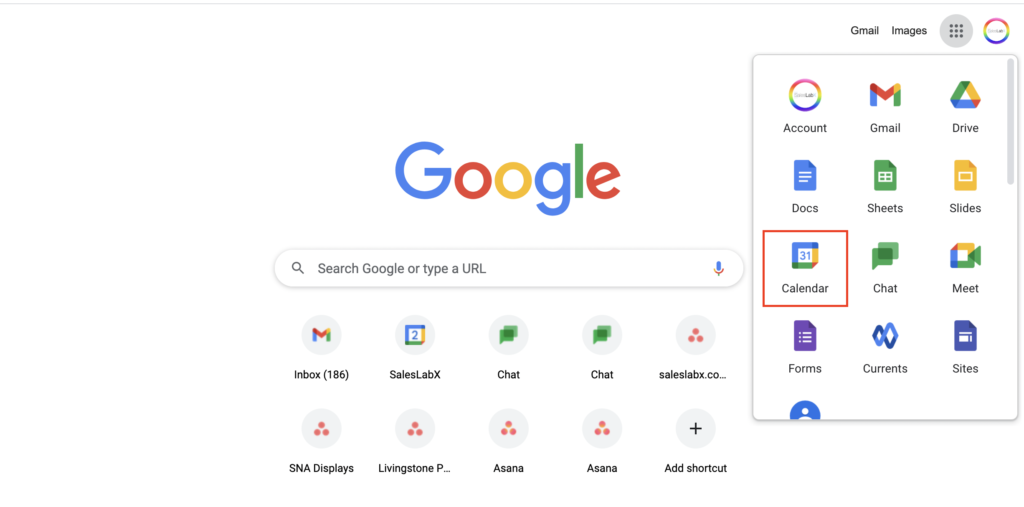
At SLX, we use Google calendar to display all team huddles, internal events (such as Happy Hours, Learning Labs, etc), and sessions with fellow teammates. Access your calendar here or by opening your browser window and clicking on Google Calendar (see screenshot below).
How to View Other Team Members’ Calendars:
Go to your Google calendar
On the left panel next to “Other calendars” click “+”
Click “Subscribe to calendar”
Start typing in the name of the person whose calendar you want to add (when you start typing, names should automatically pop up).
Click on their name and you’ll see that their calendar has been added to “Other calendars” on the left panel
Now you’ll be able to check the box next to their name to see their calendar.
Repeat the steps above for all team members. Refer to the ‘All-Team Huddle’ calendar invite to see the names of all team members or the Gusto org chart.
How to Schedule Internal Meetings with Team Members:
Check their calendar on Google calendar
Create a calendar invite within an available time slot. When creating the invite, be sure to:
Name your meeting accordingly (keep it short and simple). A suggested meeting name is “Your Name + Their Name Meeting”.
Add their email under ‘Add guests’ so they get an invitation/notification.
Click on “Add Google Meet video conferencing”.
Feel free to add brief notes, links, or attachments in the “Add description or attachments” section related to your meeting.
Sharing Your Calendar with HR and Your Team Lead:
In case of an emergency time off, our HR (People Ops) team or your team lead will need access to your calendar to set your Out of Office notice and inform your clients. Please share your calendar with hr@saleslabx.com and your team lead. Here’s how to do so:
Go to your calendar
Locate your name on the left panel under ‘My Calendars’
Click on the 3 dots next to your name
Click on ‘Settings and Sharing’
Under ‘Share with specific people’, click on ‘+ Add people’
Enter hr@saleslabx.com and change the permissions to ‘Make changes and manage sharing’
Repeat to enter your team lead’s email
Time-Blocking in Your Calendar:
To help you with time management, we suggest time-blocking in Google Calendar! This means planning out your day/week by creating calendar time slots to work on specific tasks or to allocate time for lunch/breaks. This will help you plan your time and priorities out so that you can accomplish your tasks within the given timeframe. It also ensures that you make time for lunch and necessary breaks throughout the day. I recommend doing this at the start of each week, or even better – the Friday before so you can have all of the following week planned. To add time blocks in your calendar:
Go to your calendar.
Create a calendar invite for the chunk of time you want to ‘block’ off.
Add a title (usually the name of the task you want to accomplish in that time).
Click on ‘Focus Time’ (this automatically will decline any new meetings and will set your status as busy during this time).
Save… and stick to those time blocks as best as you can!
Other Calendar Best Practices
Check your calendar daily so that you are aware of the meetings you need to attend. We recommend checking it at the start of each day, then a few times throughout as needed.
It can also be helpful to sync your calendar with your iCloud calendar on your laptop for easier browsing. But be sure to always create events on your Google calendar.
When you are invited to a session by another teammate, you’ll receive an email notifying you of the event. It’s important to always RSVP “Yes” to all event invites so that they will display on your calendar and notify you when it’s time to join. If you are unable to attend because of a scheduling conflict, you can reach out directly to the team member to reschedule or use the “Propose a new time” feature on the calendar invite to ask for a new date/time.
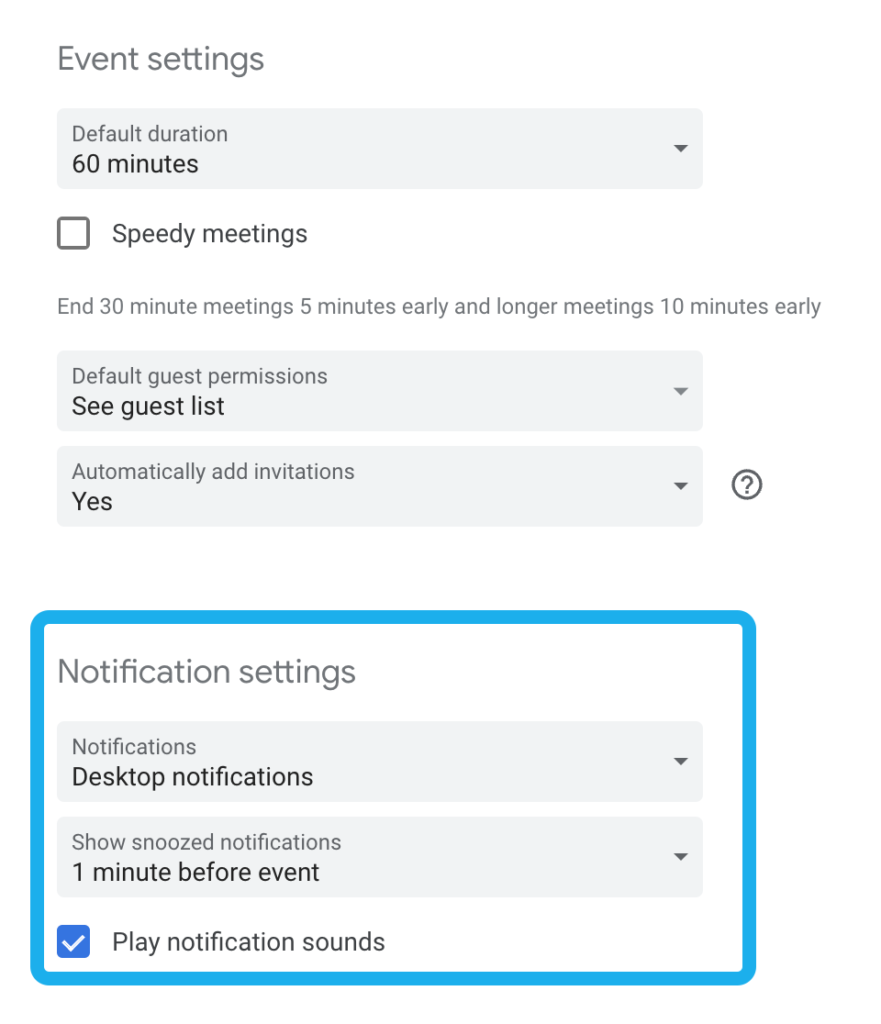
In addition to RSVPing, you will want to make sure that notifications are enabled. You can turn on desktop notifications for events by clicking the gear symbol at the top right of your calendar and choosing “Settings.” Then scroll down to Notification Settings and enable desktop notifications. You can also configure your snooze settings here. Now you’ll see a small pop-up at the top right of your screen a few minutes before any meeting you’ve RSVP’d to.
When you take time off, you’ll be asked to create an “Out of Office” Event in Google Calendar. Here’s a quick video showing how to do that. For more info about our PTO policy, please visit the SLX Perks & Policies page. You can also find the policy in Gusto under ‘Documents’, including the specific guidelines for your role.
First, make sure you have your HTML signature – this should be provided to you during your first on-boarding session by our People Ops team. If you didn’t receive it, just ask!
Click open the HTML file, which will open in a browser tab. Select all and copy the signature. Keep it open for now.
Go to Gmail, click on the wheel icon on the top right and select ‘See all settings’.
Locate the ‘Signature’ section.
Click ‘+ Create New’ signature and enter your name. Click ‘Create’.
Paste the copied signature within the new Google signature you’re creating.
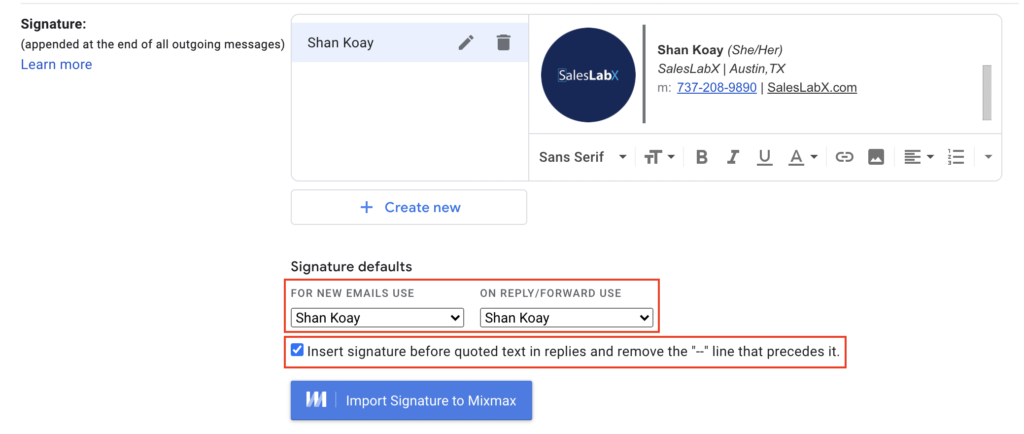
Make sure that the Signature defaults ‘For new emails use’ and ‘On reply/forward use’ are set to the signature you just set up (see below screenshot).
Make sure to check off the ‘Insert signature before quoted text in replies and remove “—“ line that precedes it” box (see below screenshot).
Click ‘Compose’ on the top left to test and see if your new signature displays correctly
Email Best Practices
Check your email inbox first thing in the morning, and throughout the day
Do your best to respond to emails within 24 hours
Keep communication professional
Always check the recipients and email subject when you forward emails
We use Google Drive as our main file storage and sharing system.
To use the Shared Google Drive you’ll need to be invited to SLX’s team. If you are unable to access it, please ask your trainer to invite you. Once you have access to the shared drive, you will need to download the Google Drive sync for desktop:
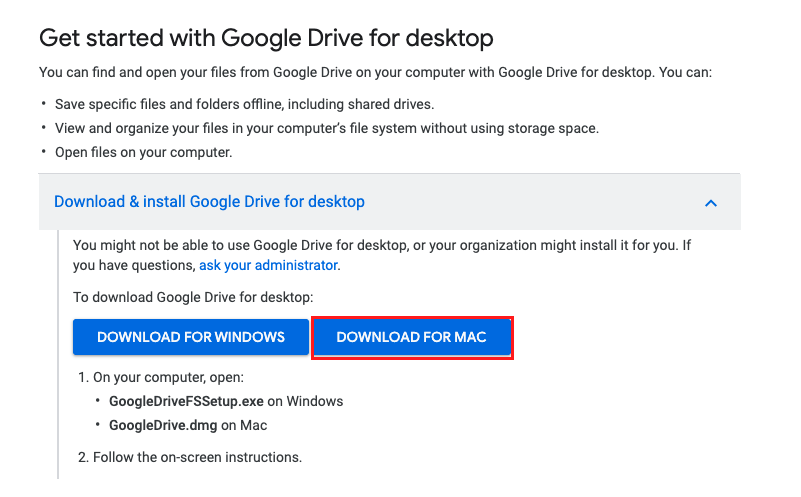
From the link above, scroll down until you see “Get Started with Google Drive for desktop” – click to expand
Then, click on “Download for Mac” (see image below) and follow the instructions provided.
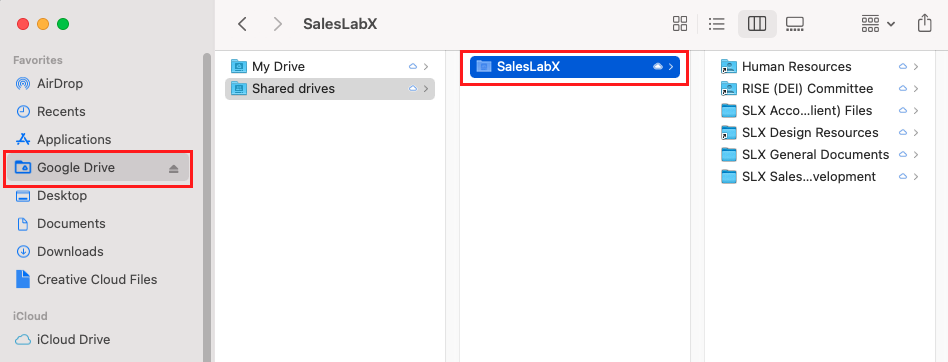
If Drive is installed correctly, you’ll be able to see ‘Google Drive’ on your left navigation panel when you open up your Finder window (see screenshot below).
Sharing Files Internally
Open the file or folder you want to share.
Click on the green ‘Share’ button on the top right and a pop up will appear.
At SLX, Google Chats is used for individual and group communication! While you can access Gchat from your Gmail inbox, we use the desktop app for a better user experience. Communication here at SLX is very open as we work collaboratively with all other teams on a daily basis. Use Google Chat to message teammates to connect about tasks, ask questions, hop on a quick call, or get to know one another!
On the top left under ‘Chat’, Click on the ‘+’ sign to start searching for a team member’s name.
Click on their name to begin sending messages.
We require you to keep the chat open for team members to contact you directly throughout the workday.
Inviting Someone to Connect Via Google Hangouts
Sometimes, it’s faster to hop on a quick call to discuss a task or get a question answered. Within your chat box, you have the option of sending a Google Hangouts (video) link. Click on the camera icon as shown below.
A Google Hangouts link will auto generate as shown below. Press enter to send the link to your teammate. Hop in the link to chat with them!
Groups
Upon joining the team, you’ll be added to the following internal chat groups:
Announcements: A one-way chat used by leadership to make team-wide announcements. Please do not reply to anything in this chat. You can react using an emoji, but we try to keep this chat clean so announcements don’t get lost. Get Down to Business: Everyone at SLX, including all leadership | Used for task related announcements and questions that concern everyone. Also used for password reset/new login requests.
Break Room: Everyone at SLX, including all leadership | Used for fun banter and other non-work related convos. Bring on the memes, GIFS, and cute pet pics.
SLX Salesforce Team: ACs and SF Developers, including our India team | Used for SF related questions and password change requests
You will also be added to your respective team huddle group and a few others along the way.
Here’s a Cheat Sheet for all the different SLX Chat channels.
You can mute certain chat groups, such as the Break Room (since it’s usually non-task related conversations) if you don’t want to hear constant dinging.
Google Chat Best Practices
Keep Google Chat open daily as team members will be reaching out to you throughout the day
Have a quick question about a task? Ping teammates to hop on a quick call by sending them a Google Hangout link
Before sending a Google Hangout link, make sure your teammate is available to hop on a call with you first by checking their calendar.
To direct your message to a specific teammate within a group chat, type @ and enter their name
To notify everyone (use very sparingly, only as needed), you can @all
NordPass is our password manager tool and is used to store login information for internal platforms and clients’ accounts. You’ll be invited to join NordPass on your first day. Click below to read our NordPass Guide, including how to set up your account and use the tool. Do not move onto Step 7 until you have completed all the steps in the NordPass Guide.
As an Operations Specialist, you will also be trained on the admin side of NordPass to assist with changing passwords and adding new logins to our shared vault space.
You will need to access Pardot and Salesforce for each of our clients to assist with resetting passwords. The best way to keep these accounts and their separate login credentials organized is to create separate Google Chrome Profiles for each account. But first, let’s make sure your personal Chrome profile is set up correctly and that you can access the shared Design email (read below for why this is important).
How to Set Up Your Chrome Profile
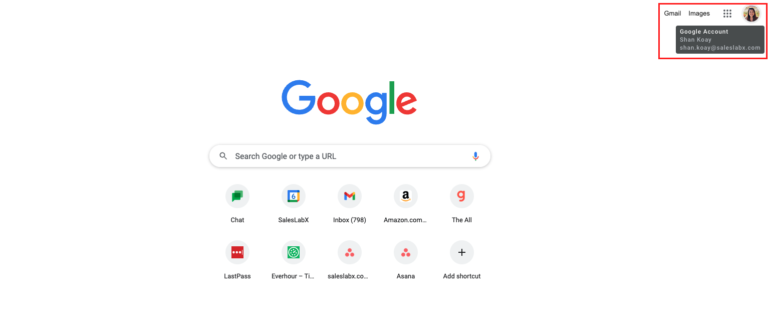
Open a new Google Chrome browser window. Make sure that you are signed into Google. If you are signed in correct, you will see your profile picture or initial of your first name on the top right of the browser (see screenshot below), as well as your email address when you hover over your photo. If you haven’t uploaded a photo yet – now is the time!
Download the LastPass Chrome extension on this profile, and disable Google’s Password Management tool. Refer back to the LastPass Guide for more details on how to do these.
Your Google Chrome profile is your main working profile. You’ll use this profile to access any internal tools and non-client related sites.
How to Sign Into the Design Gmail
The design@saleslabx.com Gmail is a shared inbox for everyone at SLX. This is where you can locate all client Salesforce verification codes. You’ll need to set this up before setting up Chrome profiles for clients. To do this:
Click on your larger profile photo on the top right of your browser, and select ’Add another account’. Then click on ‘User another account’.
On the ‘Enter your password’ screen, use your LastPass Chrome extension to search for “SalesLabx – Design Gmail”. Click on the fill button to populate the password for the email. This should sign you into the Design@saleslabx.com email.
Keep this inbox open as you’ll need it in the next step when setting up Chrome profiles for clients.
How to Set Up Account Profiles in Chrome:
Now that you have your personal Chrome profile set up and can access the shared Design Gmail, you can set up Google profiles for all clients. Follow the written steps below or refer to the instructional video:
Open up the Account Ownership Google Doc and click on the ‘Active Accounts’ tab. Here you’ll see a list of all our current clients. You will need to create a Google profile for each client.
Go to your smaller profile pic on the very top right of your screen and click on it.
Click on ‘+ Add’ and select ‘Continue without an account’.
Enter in the name of the first account/client.
Select an avatar or pick a theme color (we recommend selecting one that includes their brand colors if possible) and click ‘Done’.
Follow the LastPass Guide steps to disable Google’s Password Management tool and add the LastPass extension.
Once the extension is installed, login to your LastPass account through the extension.
In the extension search bar, type in the client’s name (company name) you just created the new Google Chrome Profile for. Here you’ll be able to find your client’s managed accounts and the relevant login credentials for each.
Launch each client’s related login from the extension and try to log into the account.
Since this is your first time logging in, Salesforce will prompt you to enter a verification code. You can retrieve this code by going to our design@saleslabx.com email inbox.
Login to the design@saleslabx.com inbox
Retrieve the Salesforce verification code from the email inbox titled “Verify your identify in Salesforce”.
Enter this code into the Salesforce login page that was asking you for the code. Moving forward, you shouldn’t need to get the verification code again to login unless the password is changed for the account.
You should now be logged into the client’s Salesforce account! Pardot can be accessed through Salesforce as well.
Repeat the above steps to create a Google Chrome Profile for each account.
Asana is our main project management tool, used to organize, track, and manage tasks. You’ll be working in Asana on a daily basis. If you’re not familiar with the basics of Asana, please begin by reviewing the below guides and tutorial videos:
Looking to learn more about the platform features? There are tons of other short articles, helpful tips, and tutorials available on the Asana Guide page.
How We Use Asana
We have both internal and client-facing Asana boards for each account. The internal boards are what the Design, Salesforce, Development, and Pardot teams see. The client-facing boards are what the clients see. Only Account Coordinators have access to manage both boards.
Clients: Clients submit “tickets” through building out a task card
Account Coordinators: Review client “tickets” (tasks), submit these requests over to the internal boards, and assign them to our teams to work on. When tasks are completed, ACs will communicate this to the client
Design, Development, Pardot, and Salesforce Teams: Review the tasks ACs have assigned, complete the task, make edits as needed, and post updates for ACs
QA Specialist: Review the assets that internal team members create for consistency, accuracy, and quality. You will point out errors and inform our internal team of changes needed.
HR and Operations: Work on assigned tasks, create tasks, setup on-boarding related boards and tasks for new hires.
In our Processes section of this manual, we’ll dive deeper into the various processes we use.
Main Asana Features
Teams, projects, and tasks are the key to our workflow in Asana. Here’s how they look using the Kanban board view.
At SLX, we use Teams to organize a set of projects (boards). You will be added to the relevant teams during your on-boarding process and can access them through your left navigation bar under ‘Teams’.
Internally, teams are used to organized internal client boards for Creative and Salesforce teams. Internal teams are not to be shared with clients. Here’s a list of internal teams that you’ll have access to:
SLX Internal: For internal projects.
SLX Creative Team: Where we assign client tasks to our Creative team members
SLX Salesforce Team: Where we assign client tasks to our Salesforce team members
SLX 2022 TEMPLATES Team: Where all of our internal task templates are stored
AC Mock Board Template: Where we create mock boards for new ACs to give them a practice space
AC 30-60-90 Boards: Where we host all new AC 30-60-90 day boards
Externally, each client is their own ‘Team’. Client teams are made up of individual boards for each service they have with us (Salesforce, Pardot, WordPress, etc). External teams are not to be shared with internal team members, only with ACs and the relevant account contacts, so you will generally not see these.
Asana Kanban Board View
Asana Projects (also known as Boards)
Projects are created under teams. A team can have multiple projects. Each client account has their own project, also referred to as boards. We have internal boards and external boards. Internal boards are accessed by our internal teams, like Operations. And external boards are accessed by our clients. As an Ops Specialist, you will work daily in internal boards to manage tasks, communicate with your team lead, and collaborate with other internal team members.
You will be added to the relevant project boards during your on-boarding process and can access them through your left navigation bar under ‘Teams’. Internal teams are not to be shared with clients. Here are some internal teams that you may be working in:
Internal Design Projects: For internal design projects.
SLX Marketing: For SLX-related marketing tasks.
Internal ACs Projects: For ACs to track, organize, and manage their personal projects on.
SLX Internal SF Admin: For our SF Developers to track, organize, and manage internal Salesforce tasks.
RISELabX: For our RISE (DEI) Committee and related tasks.
Internal Operations: For internal operations/admin-related tasks.
Internal People Operations: For our People Ops team to track, organize, and manage our HR-related tasks.
Recruitment and Hiring: For our People Ops team to track, organize, and manage our recruitment/hiring process and candidates.
Off-Boarding & Transition Plans: For our People Ops team to track, organize, and manage team members that are off-boarded.
Task Cards
Tasks cards are either used as “tickets” to complete client requests, or just general to-dos internally. Clients request tasks and it is the job of the ACs to help clients to accomplish their requests by building out the task on the internal board in Asana, where it will then be assigned to our internal team.
Columns: Help us organize and visualize how many tasks are on the board and what stages they are in when using Kanban Board view.
Parent tasks and subtasks: Within a task, we can easily create subtasks. Subtasks help to organize multiple steps (often separate tasks) within a larger task. You can quickly tell if you are looking at a subtask or main task by looking at the top of the task for a gray link back to the parent task. If there is one, you’re looking at a subtask. If you’re looking at a main task, you’ll see no gray link at the top, but you will see a list of subtasks below the description.
Asana Parent TaskAsana Subtask
Task Fields Within task cards, the standard fields we use are:
Assignee: To assign the task to a specific person who will be responsible for the work
Due Date: Indicates the task’s due date. If a due date is specified as a date range, you have until the end of that range to complete the project.
Projects: Indicates which project the board is part of.
Dependencies: These set the relationships among tasks and determine the order in which tasks need to be performed. You can prevent certain tasks from happening until a task prior is completed first. Read here to learn more about this.
GoVisually Project Link: This field is for ACs to include final approved Govisually project links for the creative team. You won’t be referring to this link to often, but it’s good to know what it’s used for.
Asana Project Link: This field is for ACs to include the direct Asana link to the matching task on the client-facing board. You do not need to worry about this.
Status: Indicates what status the task is in. Though columns give us a general idea, statuses provide more detail.
Priority: Used on internal boards to identify how urgent a task is and helps us prioritize what to work on first.
Error Tags: To help us track the accuracy of our work. Please refer to the SLX Accuracy Tracking Guide to see which errors are tracked by whom and when.
Description: The description box is where we enter details and instructions about the task.
Mentions and Collaborators
Mentions: You can draw someone’s attention to a task by using the @ and typing in their name in task comments or task description.
They will be notified in their inbox and email (if email notifications are on) and can quickly navigate directly to the specific task. @mentioning someone will also automatically add them as a collaborator on the task. Be careful to select your teammates name and not one of our clients! (Check for @saleslabx.com in their email)
In order for a task to appear on a person’s calendar, it must be assigned to them and have a due date of today. When submitting tasks for approval, you should both assign the task to the person who will be approving, as well as tag them in your comment by typing “@TheirName” in the comment box. This ensures the comment will appear in their inbox so they can respond to you promptly.
Collaborators: Task collaborators are people that need to be informed about the task and any updates/changes to the task.
You can easily add collaborators by clicking on the + button at the bottom of the task, where you see ‘Collaborators’. As mentioned earlier, if you @mentioning someone in a comment, they will automatically be added as a collaborator on the task as well.
Watch our video below to learn more about Mentions and Collaborators.
Asana Inbox
Your Inbox is where you will receive notifications about recent activity on tasks you are involved in. It’s important to check your Asana inbox regularly throughout the day so you don’t miss updates or approvals. To learn more about Asana Inbox watch the tutorial below and read this guide.
Check your email notifications or your Inbox in Asana frequently to see what tasks are waiting for approval, received updates, or need further action.
We also recommend that you disable email notifications so that your Gmail inbox doesn’t get clogged with duplicate Asana updates that you’ll receive in your Asana inbox anyway.
To configure your Asana notifications settings:
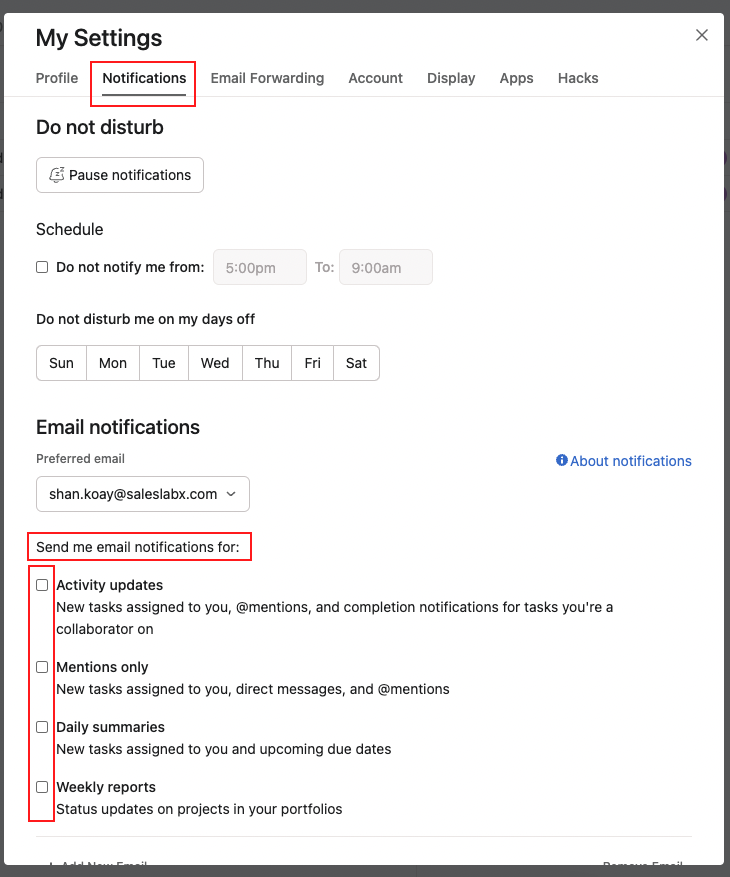
Click on your avatar at the top right of your screen in Asana and select “My Settings.”
Select ‘Notifications’ from the top of the ‘My Settings’ page.
Under the ‘Send me email notifications for:’, unselect all the checkboxes. This will prevent you from getting email notifications since you will be getting notifications via your Asana inbox already.
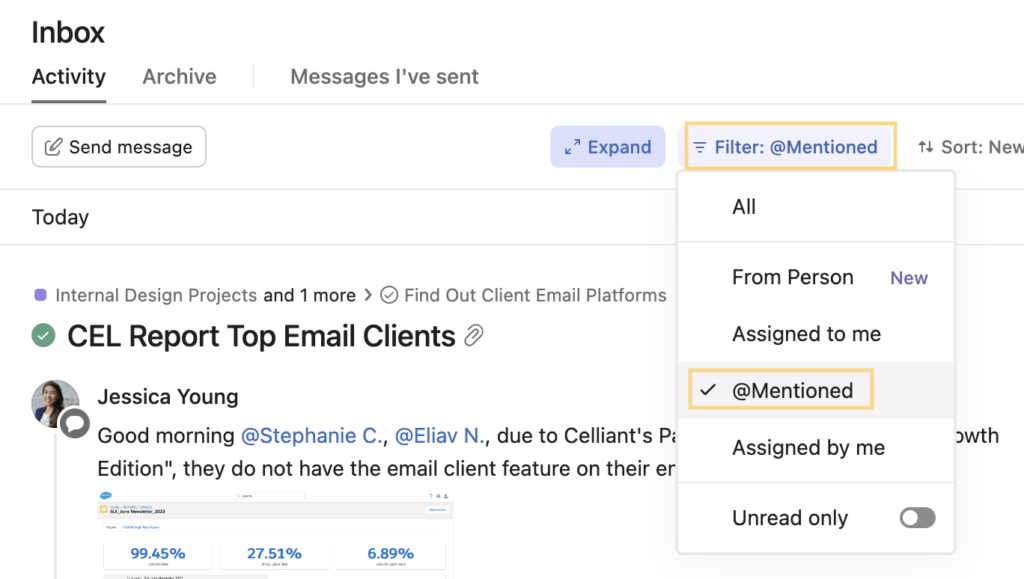
We recommend setting your Asana inbox notifications to filter @Mentioned only so you only see activity directly related to you.
In order to reconfigure your inbox settings to only show messages or updates that mention you, do the following steps:
On the Inbox main page, click on the “Filter” subheaders and select “@Mentioned”
Your inbox should automatically update, if it doesn’t, refresh your page.
How to Update Task Templates in Asana:
As part of your role, you may be asked to help update task templates as we update our process. To do this, you will need to access the Asana task templates.
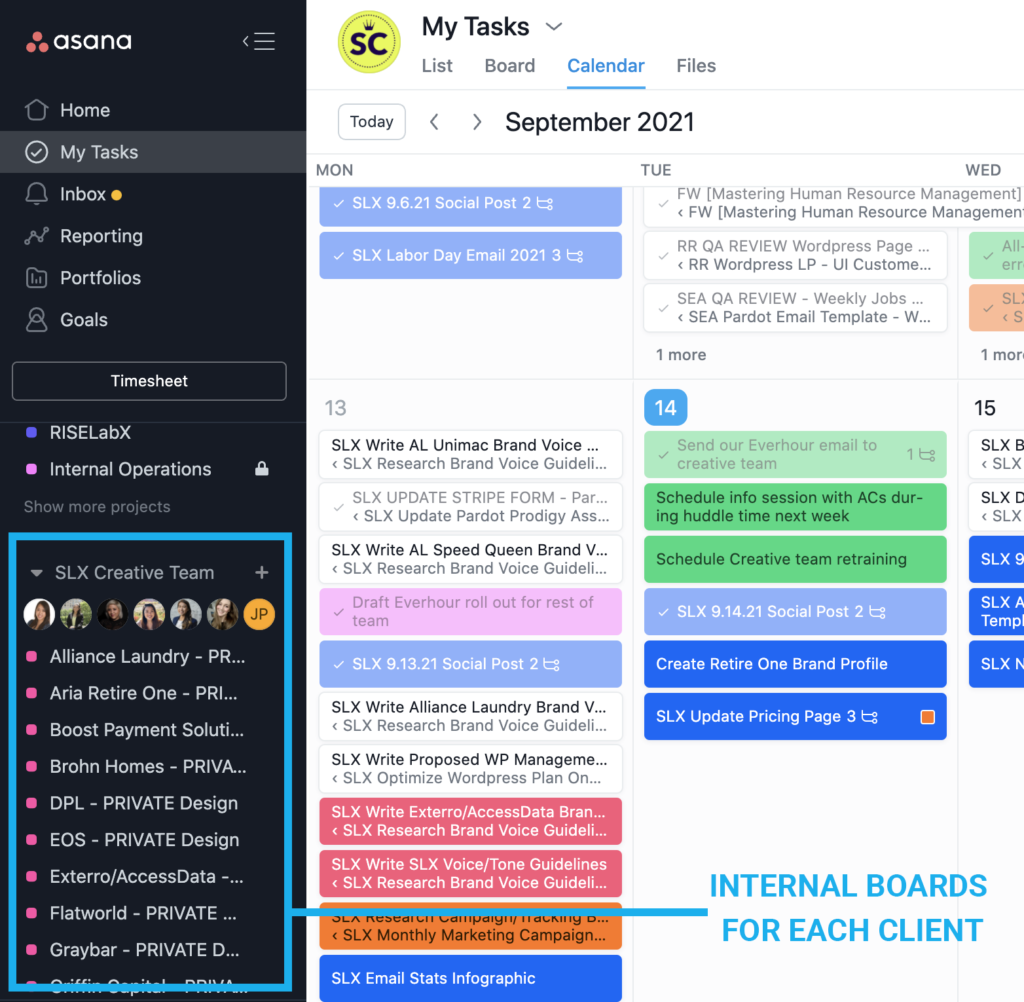
On the left sidebar under SLX Creative Team you will see all client boards. Each one must be updated separately.
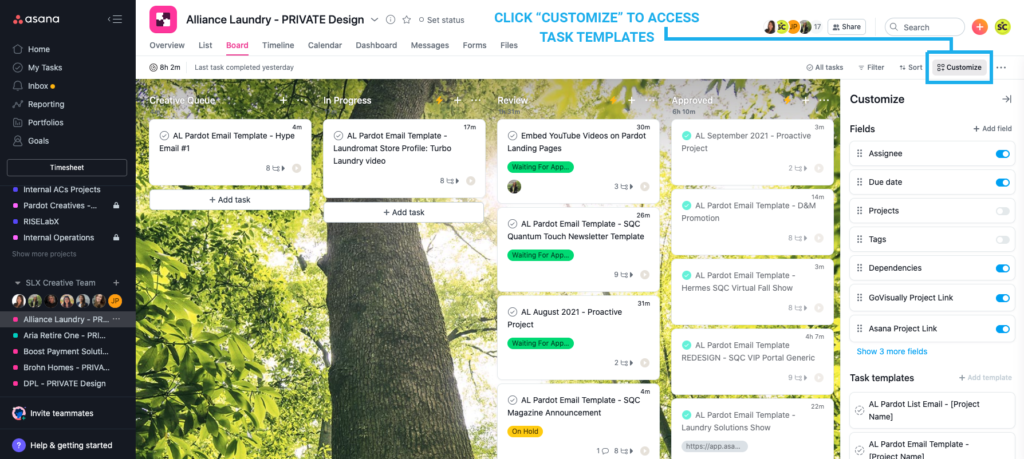
To access each client board’s task templates, click the client board and then click “Customize” at the top right to open the Task Templates area.
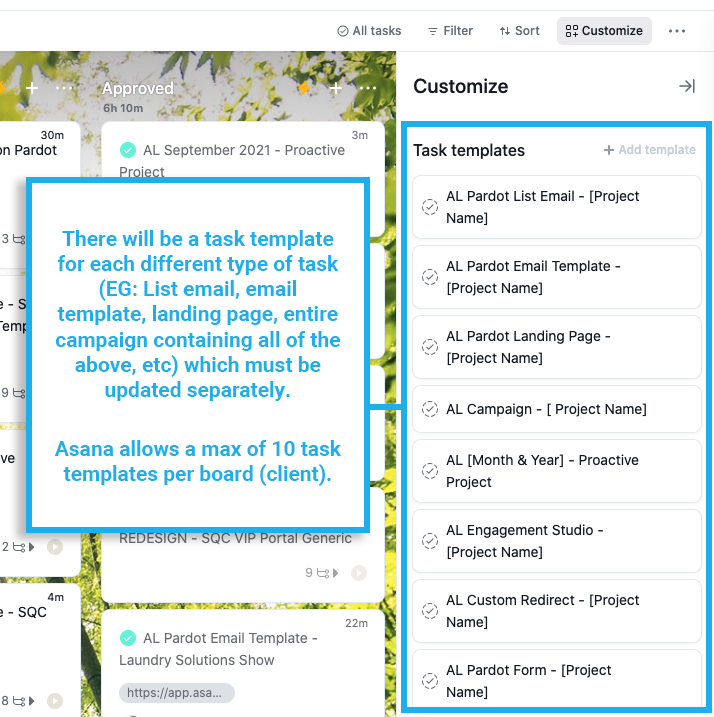
Scroll down within the column and click “See more templates” to view all Task Templates for that client board. Asana allows up to ten different templates per board. You’ll find a template for some of the most comment assets we build for clients. Internal boards have templates too.
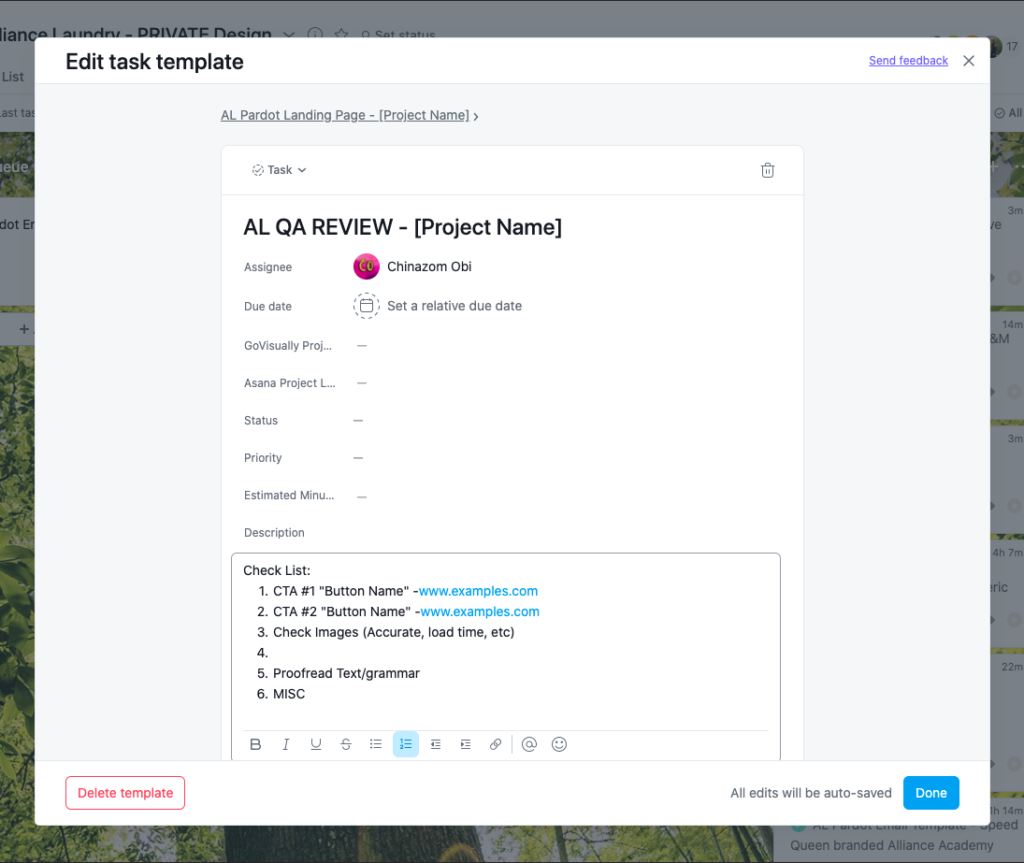
You will need to click into each task template individually to update the template. Once you click into the task template you will see all the subtasks as well.
Everhour is a time tracking tool that integrates with Asana. With Everhour, you can track how much time you spend on each task. We use Everhour to collect baseline data, including which parts of your role could be made more efficient, what types of tasks are the most time consuming, and which accounts are monopolizing your time. Our goal is to help you better balance your workload, manage your bandwidth, and improveproductivity.Everhour helps us collect the data we need to make informed decisions.
How to Access Everhour and Integrate it with Asana
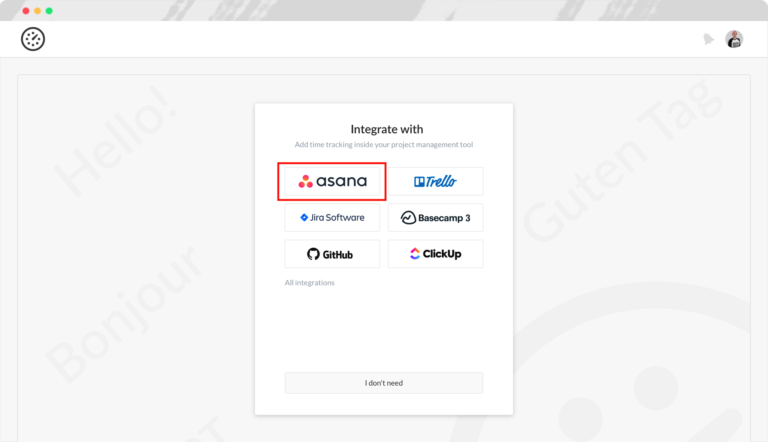
You should have received an email invitation to join Everhour and set up an account. Please follow the instructions provided in the email to connect Everhour with your Asana! You will be prompted to connect your Asana account during the sign-up flow. To do this, you need to hit ‘Asana’ button (see screenshot below) and let Everhour do the rest, step-by-step.
When you connect Asana with Everhour, all your active projects will be synchronized automatically meaning that you can start tracking time right away. No manual project setup required!
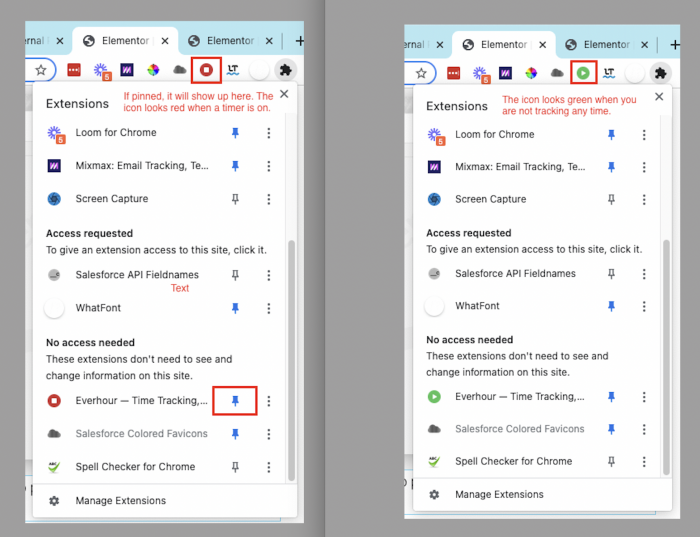
You will also be prompted to download the Everhour Google Chrome plugin. Please be sure to pin the Chrome extension to your browser bar so that it is visible (see screenshots below):
Click on the puzzle piece icon in the top right corner of your browser
Then locate ‘Everhour’ and click on the pin icon
The pin icon will turn blue, and a green play button should appear on your browser bar
From here, you can easily see if you have a timer going or not. You can also stop/start a timer easily from this plugin.
How to Use Everhour in Asana (Basics)
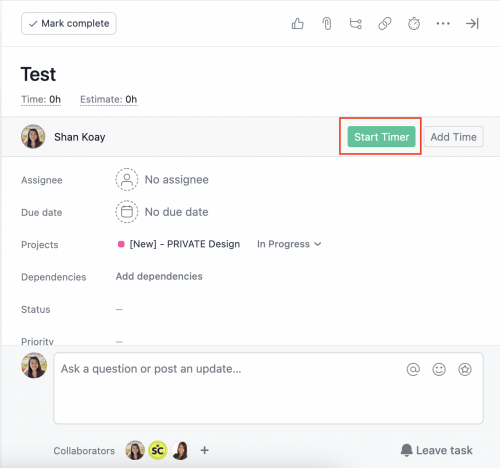
When Everhour is integrated with Asana, you should see a green “Start Timer” button on all tasks. See screenshot below.
Simply click on this button to start tracking time for your task. The button will become a red “Stop” button and a timer will begin. See screenshot below.
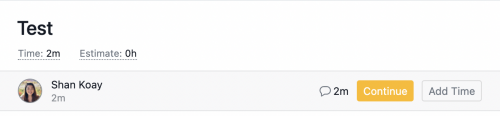
To stop the timer, hit the “Stop” button and it will become a yellow “Continue” button. See screenshot below. If you wish to continue working on the task at a later time, click on “Continue” to start the timer again.
How to use Everhour (and Best Practices)
General use:
Use Everhour when working on a task in Asana.
If you are working on a specific subtask, start the timer on the specific subtask, not the parent task.
Remember to start the timer as soon as you start working on the task.
Stop the timer when you stop working on the task.
Don’t let the timer max out: But if you accidentally do, you can manually update the data to reflect a more accurate time.
Do use the Chrome plugin for quickly starting/stopping/pausing/resuming a recent task: Keep an eye on whether the browser icon is red or green periodically to make sure you’re tracking time when you’re working on stuff OR not tracking time whenever you are not.
If you are working on the same task but on internal and external cards at the same time, start the timer on the task card where you are spending the most time.
You do not need to stop your timer if pausing to respond briefly to a message in Google Chats if it takes less than 5 mins.
Note: If you forget to stop a timer on a task, but you START a timer on another task, the timer on the first task will automatically stop.
Using Everhour in meetings:
When in a meeting and if discussing a specific task, start the timer on the task. Help remind each other!
When in a meeting and not discussing a specific task (i.e. a general strategy question), you don’t need to log the time.
To log non-client tasks: For tasks such as completing your performance review forms, voting for awards, goal updates in Lattice, etc…, use your relevant team board below, create a task, log your time, and close the task out when done:
Designers and Creative Writer: Use the Internal Design board
Developers: Use the Internal Dev board
ACs: Use the Internal ACs Projects board
Pardot Specialists and SF Devs: Use the Internal Admin Projects board
Leadership: Use the ELT board
QA: Use the SLX Internal Admin board
Ops Specialist: Use the Internal Ops board
People Ops: Use the Internal People Ops board
RISE Ambassadors: Use the RISE board for RISE-related tasks
If you’d like to learn more about Everhour as a tool, you can visit their help docs page
Loom is a screen recording platform, frequently used by team members to record client sessions, create demo videos to share with accounts or team members, or instructional internal videos. As an Operations Specialist, you will be using Loom frequently to film how-to/instructional videos for trainings. You will be given access during your on-boarding process. Check your SLX Gmail inbox to set up your login details.
Download the Loom extension for Chrome
Open this link to download the Chrome extension. You don’t need to download the desktop app.
Install “Loom for Chrome”. The purple Loom icon should now appear as a Chrome extension on your browser (see screenshot below).
Go ahead and pin this extension.
The extension give you quick access to Loom without having to open up the Loom home page in a new browser tab. You can click on the icon to begin screen recording at any time.
Internal Teams: Use Loom to record details or instructions for complete tasks, guidelines, or processes. Share the directly video link of your recording with the respective internal team member on the related internal Asana card or add it to the relevant process/training guides.
Organizing Your Loom Videos
Keep your naming convention consistent. Use a naming convention like “[Name of training/video topic] – mm/dd/yyyy”
Use folders to keep your video recordings organized. More details to come soon on organizing org-wide videos.
Loom Tips
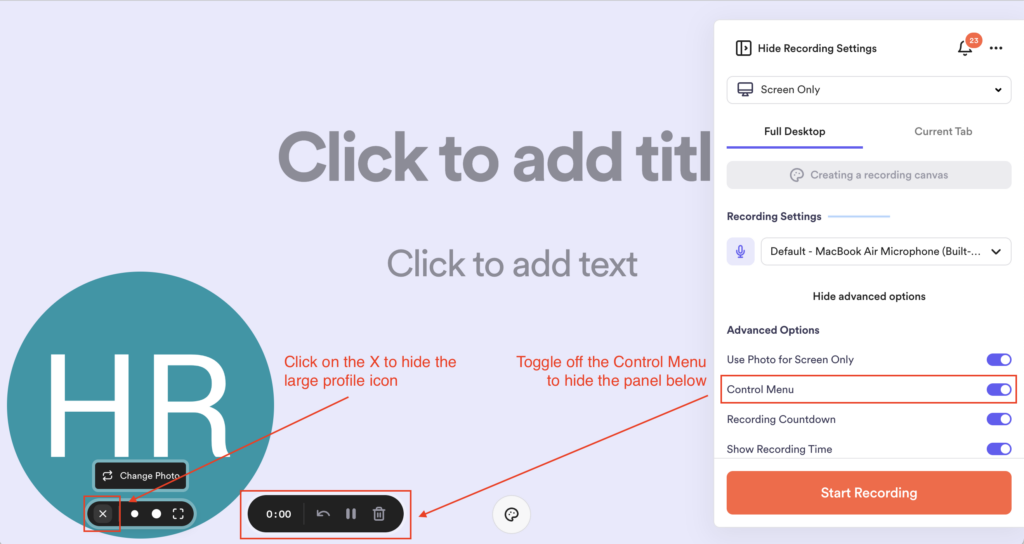
When recording instructional videos, you can hide the recording menu and Loom profile image for a cleaner look. Click on the ‘x’ over the profile image to hide the profile image. Toggle off the ‘Control Menu’ to hide the recording menu (see screenshot below). Review this guide to learn more.
You can easily edit videos (trim/split), so if you are recording an instructional video, you may not need to re-record if you make a mistake. Just pause, wait 2-3 seconds, and start again. You can edit those few seconds out later. Learn about trimming Loom recordings here.
Do not use headphones when recording as no sound will be recorded
If Loom is not working, refer back to “Step 1: Google Accounts” in the AC manual as you may need to enable screen sharing and recording again
Lucid Chart is a tool used to create and collaborate on drawing, revising and sharing flowcharts or process flow diagrams. ACs use this to assist clients with marketing strategy, but in the Ops Department, we use this to help map out complex processes or work flows.
How to Access and Set Up Your Folder in Lucid Chart
The login to Lucid Chart is on LastPass. From your LastPass extension, search for “Lucid Chart (hr@saleslabx.com)” and sign in. This is a shared account that only HR and Operations team members use.
Once logged in, you can create folders to organize projects within Lucid Chart.
For general guidance on how to use Lucid Chart:
Review the Get Started guide for a basic overview of how to use Lucid Chart
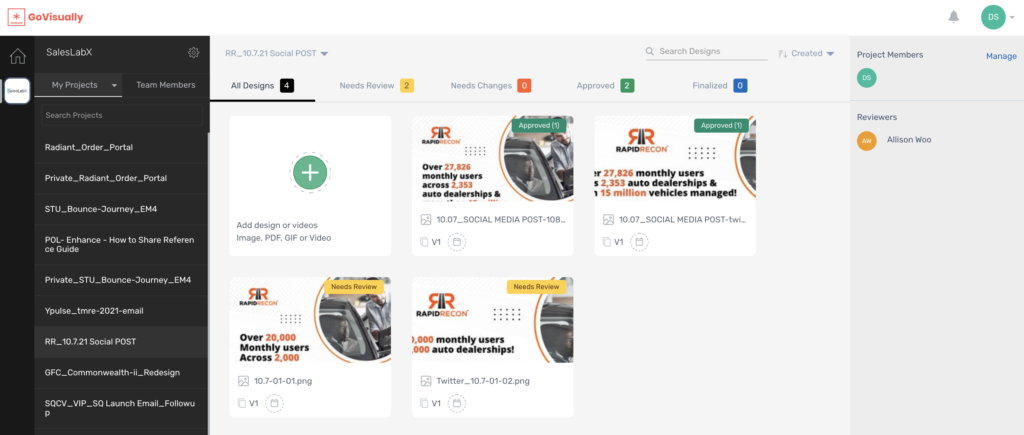
GoVisually is a proofing tool used by our design team to provide design proofs for internal review, and then to our clients. As an Operations Specialist, you may need to access GoVisually once in a while if you are stepping in to help QA occasionally.
Note: This is a shared account for all team members. As a QA Specialist, you do not need to change any settings.
For the times that you use GoVisually, you will be sent a direct GoVisually link to review, so you don’t need to worry about digging around in the actual platform much.
FYI: For client work, there will be two versions of each project: The internal review project (look for PRIVATE in the beginning of the project name), and the client facing project (same title minus the PRIVATE part). We use the internal version to give each other feedback and finalize the proof to get it ready for client review- all revision comments are made by internal team members. The client facing version will feature only feedback from the clients themselves- we avoid commenting in this version because the client is notified whenever a new comment is added or a new proof is uploaded.
Pardot is Salesforce’s marketing automation tool and one of the main platforms we offer services for. Whether you’ve had experience with Pardot before or not, you’ll have opportunities to learn about the platform. Much of what we do for clients in Pardot centers around marketing automation, lead generation, and design. Review the resources below to get started with a general overview of Pardot:
We also recommend checking out a few modules on Trailhead – Salesforce’s learning platform that offers a series of online tutorials, interactive assessments, and more. You can sign up for a free Trailhead account through your Google account. Read more about Trailhead here.Here are just a few suggested modules:
There are plenty of other Trailhead modules that you can browse and learn from if you’d like to dive deeper into the platform or a specific feature.
Pardot Trainings
You will be invited to participate in an internal training series called “Pardot Prodigy”. These occur once a quarter, and while optional for an Ops Specialist, it’s extremely helpful (and recommended) that you participate. The series consists of 9 separate sessions over 3 weeks and will provide an overview of Pardot as a tool.
Salesforce is one of the biggest customer relationship management (CRM) platforms in the world. This is the other main platform that we offer services for. Even if you’ve had experience with Salesforce before, there’s plenty to learn about the platform on an on-going basis as well. While as an Operations Specialist, you won’t need to know much about Salesforce to begin with, we encourage you to get a general understanding of the platform as you may be using it for reporting/data analysis purposes.
We also recommend checking out modules on Trailhead – Salesforce’s learning platform that offers a series of online tutorials, interactive assessments, and more. You can sign up for a free Trailhead account through your Google account. Read more about Trailhead here. Here are just a few suggested modules:
There are plenty of other Trailhead modules that you can browse and learn from if you’d like to dive deeper into the platform or a specific feature. Again, not necessary at the moment, but helpful if you’d like to learn more.
Salesforce Certification
While we have Salesforce specialists on our team, that doesn’t mean you can’t become one too! If you’re interested in getting Salesforce certified, we’ll pay for it.
Lattice is our engagement and performance management platform tool. It helps our team organize, track, and gain visibility into our individual and collective progress, goals, and growth. We use this tool for Performance Reviews, goal setting and tracking, giving and receiving feedback, and more.
You will be invited to join Lattice via email. Follow the instructions in the Lattice Guide below to get set up. Please also read through the guide to learn more about the platform.
As an Ops Specialist, you’ll need to be familiar with our main Design process, which outlines how client tasks are assigned to our Creative Team, and how our various teams collaborate towards completing design tasks. You will be trained in the detailed version, but begin by reviewing the condensed version of our process below.
Please also review the following processes in detail for each role and continue to reference it as needed. Don’t worry, you’re not expected to memorize the process for each role, but over time, you will become very familiar with the process as you’ll help us improve and update the processes. Any updates to the process will also be updated on the relevant process page.
Not sure which AC is associated with which account(s) and which accounts have what plan? Check out the handy dandy Account Ownership spreadsheet below.
As we continue to improve this training manual to be as helpful and clear as possible, there will be ongoing updates. We always welcome feedback and suggestions on the current version. Thank you!